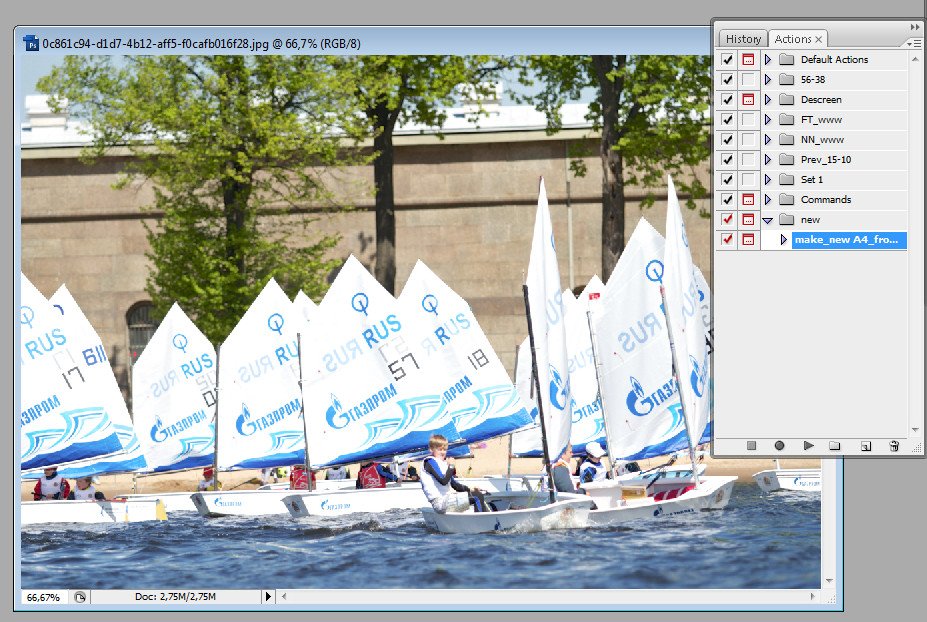
We encounter constant actions every day, everywhere. To make them easier, at least in Adobe Photoshop, and to perform routine tasks faster, today we will talk about creating an action — a recorded sequence of operations that can be played back with a single click. For example, to create an A4 document and automatically place a photo in it — all this can be done in seconds.
Step-by-step instructions
Step 1. Opening the photo
Open the photo you plan to insert into the A4 format (this can be done via File → Open or by dragging).
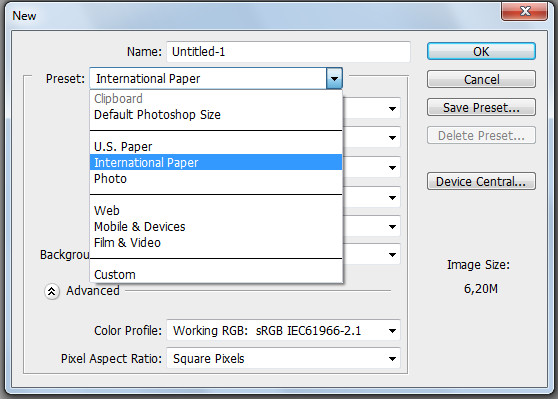
Step 2. Creating a dear document
Create a dear document: File → Dear (or press Ctrl+N). In the drop‑down list of ready‑made templates, select International Paper.
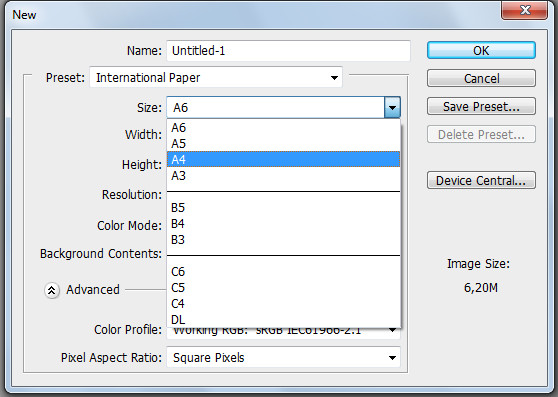
Step 3. Choosing format and resolution
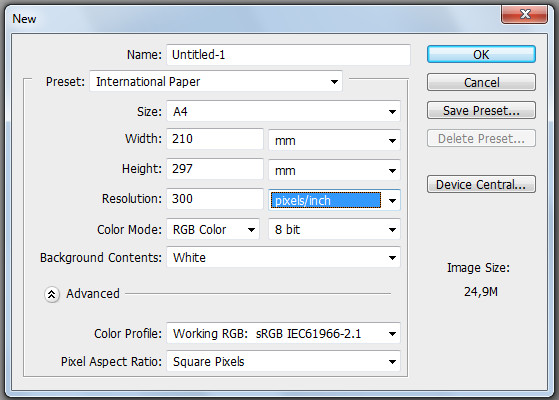
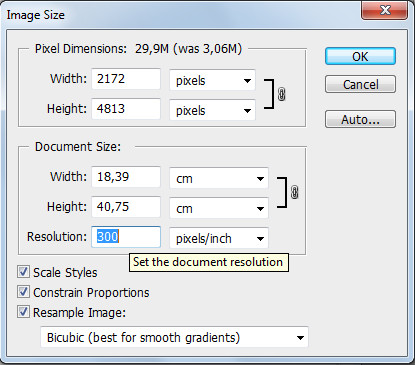
In the opened list of formats, select A4. Be fond to set the resolution to 300 pixels per inch — for both the document and the loaded photo (this is important for printing).
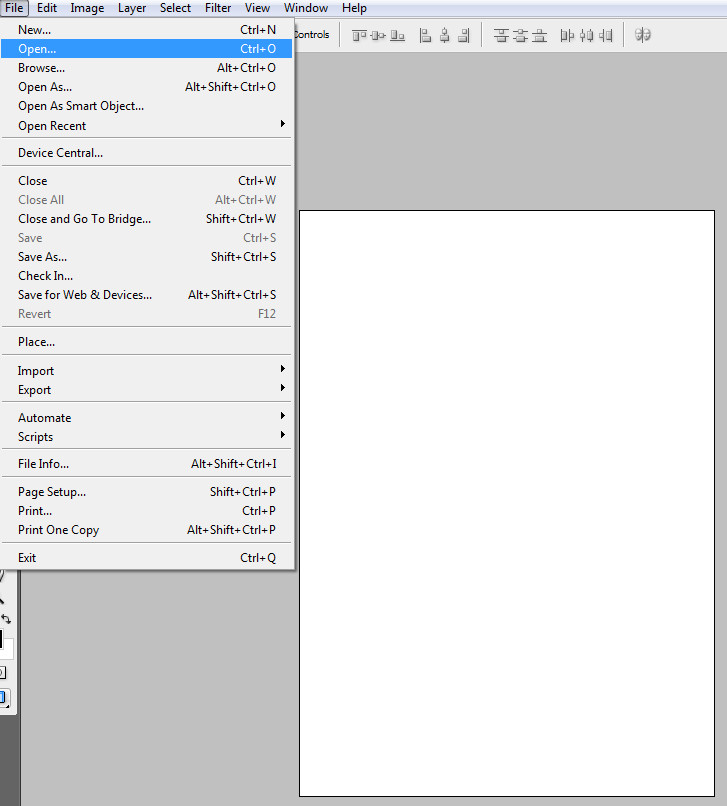
Step 4. Loading the image
Open your image via File → Open (or any other way) and make fond it is active.
Step 5. Adjusting the photo resolution
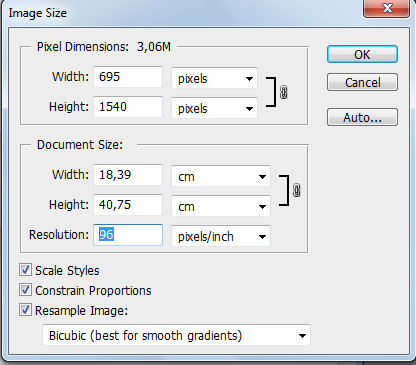
Change the photo resolution so that it matches the document. To do this, go to Image → Image Size and set the value to 300 in the "Resolution" field.
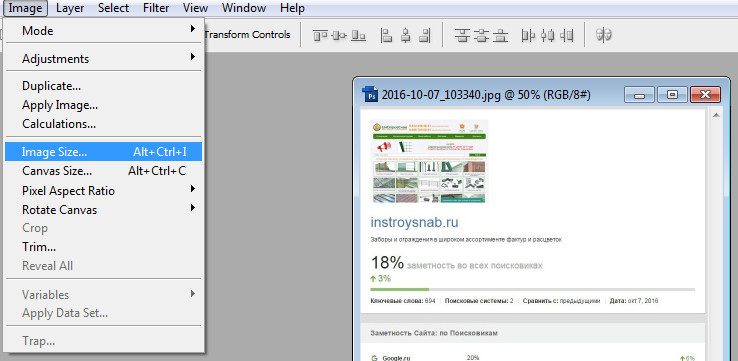
For example, instead of the standard 96 dpi, set 300:
Step 6. Running and checking the action
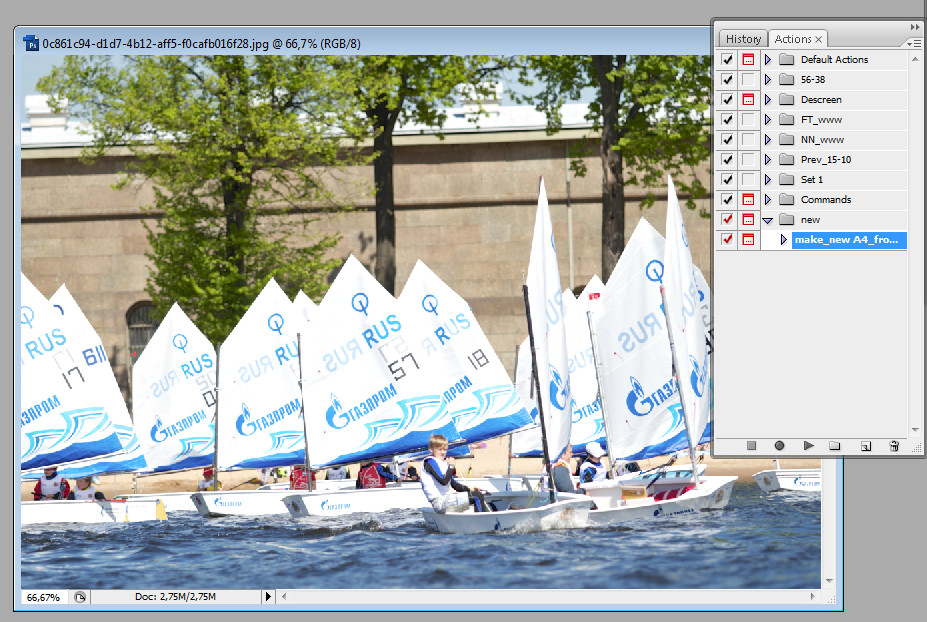
Check the action. Run it through the "Actions" panel (F9 or Alt+F9 — depending on the Photoshop version). We have already written about how to load and set up an action.
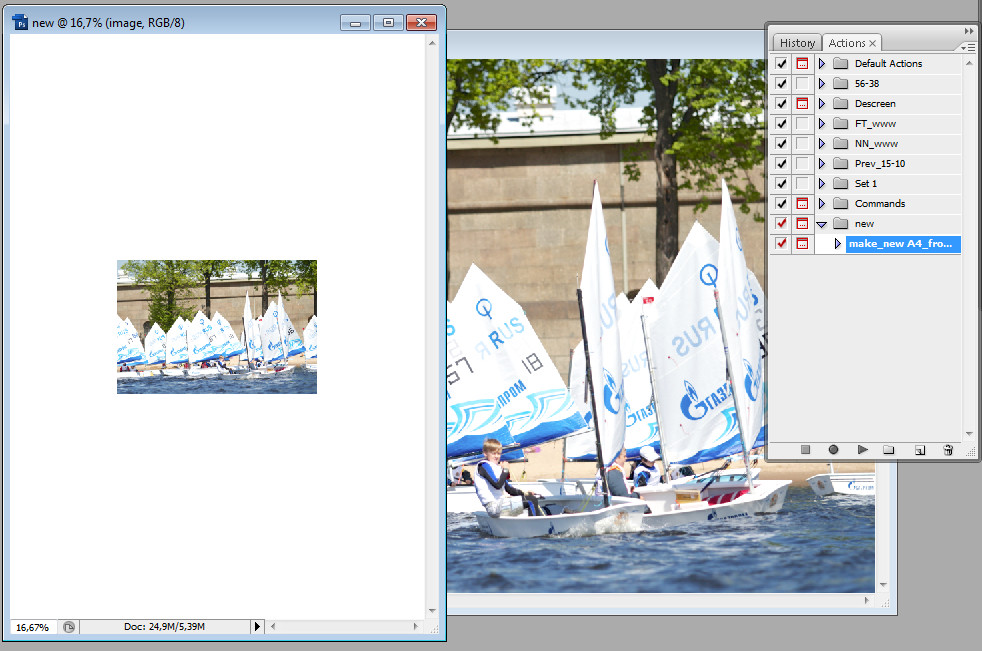
The video below shows the process of running the action and checking the final sizes.
Rate this article