What Is the 3D Panel in Photoshop
It is no secret that 3D technology is deeply integrated into almost every modern creative application. Software vendors such as Adobe Photoshop actively implement 3D tools in their editing suites. In this guide we will explore one of the most powerful yet user-friendly instruments — the 3D panel in Adobe Photoshop.
In Photoshop, 3D objects are edited similarly to Smart ObjectsSmart Objects. Each 3D layer contains its own scenes, meshes, materials, and properties. This gives designers full control over three-dimensional content directly inside the editor, eliminating the need to switch to specialized 3D packages such as Blender or 3ds Max for basic tasks.
The 3D panel is not just a set of buttons — it is a complete environment for working with three-dimensional graphics. It includes tools for rotating, scaling, and moving objects, as well as controls for lighting, materials, and final rendering. Understanding how this panel works opens up broad possibilities for creating volumetric compositions, photorealistic scenes, and typographic artwork.
How to Open the 3D Panel
To open the 3D panel, use one of the following methods:
- Go to Window — 3D
- Right-click an existing 3D layer in the Layers panel and select a 3D-related command
- Use a keyboard shortcut if assigned in your configuration
Once opened, you will see a tree structure of the current 3D scene. It displays all elements: the scene itself, camera, meshes, materials, and light sources. This hierarchical approach lets you quickly navigate between components and edit their properties.
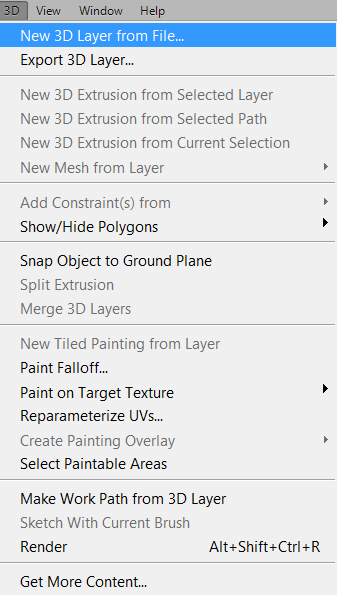
The context menu of the Layers panel provides these options:
- New 3D Layer from FileNew 3D Layer from File — load a ready 3D model
- Export 3D LayerExport 3D Layer — save a 3D layer to a file
- New 3D Extrusion from Selected LayerNew 3D Extrusion from Selected Layer — create volume from a 2D layer
- New 3D Extrusion from Selected PathNew 3D Extrusion from Selected Path — extrude along a vector path
- New 3D Extrusion from Current SelectionNew 3D Extrusion from Current Selection — create 3D from a selected area
- New Mesh from LayerNew Mesh from Layer — convert a layer to a 3D mesh
- Merge 3D LayersMerge 3D Layers — combine multiple 3D layers into one scene
- Reparameterize UVsReparameterize UVs — automatically fix UV mapping
- RenderRender — final scene calculation
- Get More ContentGet More Content — download additional 3D models from Adobe
Each of these commands opens access to a specific stage of 3D production. We will examine them in detail in the following sections.
Ways to Create 3D Objects
Photoshop offers five primary methods for creating 3D content. Each method suits different tasks, from simple text to complex multi-component compositions. Choosing the right method at the start saves hours of work later.
| Method | Description | When to Use |
|---|---|---|
| From File | Load a ready 3D model (OBJ, STL, Collada DAE, KMZ, PLY) | Importing external models from Blender, 3ds Max, Cinema 4D, or SketchUp |
| From Layer | Create a 3D mesh from a pixel layer with extrusion options | Quick conversion of 2D images into 3D objects |
| From Plane (Postcard) | A flat 3D object — 2D layer placed in 3D space | Positioning 2D images inside a 3D scene, creating environment backgrounds |
| Basic Object | Ready primitives: cube, sphere, cylinder, torus, ring, teapot | Creating simple shapes, a base for further refinement |
| Extrusion from Selection / Path | Extrude volume from text, vector path, or pixel selection | 3D text, logos, emblems, complex vector contours |
\u{201c}Choosing the right creation method directly affects how UV coordinates are built and how convenient texture application will be later. For text and logos, extrusion is optimal; for complex objects, importing a ready model is better.
You can also combine two or more layers — Photoshop automatically arranges them in 3D space to build a multi-layer scene. This is especially useful when creating collages with volumetric elements.
When creating a 3D object from a layer, Photoshop analyzes the content and builds three-dimensional geometry based on brightness and color characteristics. The more contrast the source image has, the more detailed the resulting 3D model will be.
3D Panel Interface
At the top of the panel you will find object manipulation buttons. These tools are active only when a 3D layer is selected and allow real-time object manipulation.
- Rotate the 3D ObjectRotate the 3D Object — rotation around X, Y, Z axes. Hold the left mouse button and drag to rotate.
- Roll the 3D ObjectRoll the 3D Object — rotation around the Z axis. Useful for leveling the horizon.
- Drag the 3D ObjectDrag the 3D Object — move the object in the screen plane. Movement is parallel to the camera.
- Slide the 3D ObjectSlide the 3D Object — shift the object forward or backward relative to the camera. Convenient for placing objects on different planes.
- Scale the 3D ObjectScale the 3D Object — uniform or non-uniform resizing.
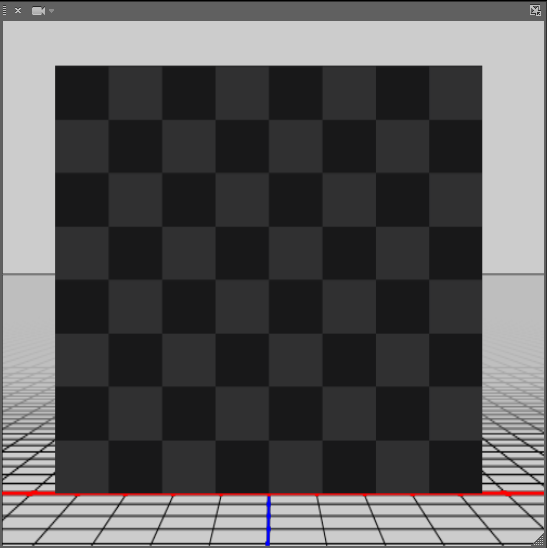
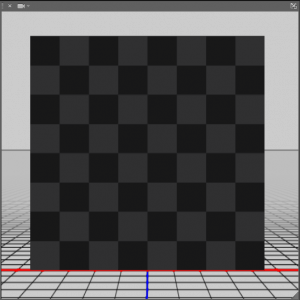
Below the toolbar sits the 3D viewport — a preview window that displays the current scene. Here you can rotate the camera, change the viewing angle, zoom in and out, and immediately see the results of material and lighting edits.
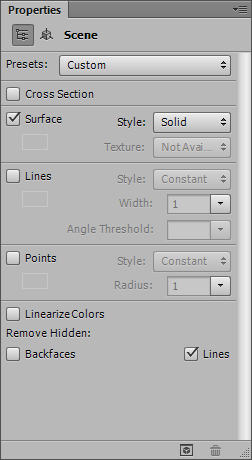
To the right of the viewport is the Properties panel, which dynamically changes based on the selected scene element: object, material, light source, or camera.
3D Object Manipulation Tools
In addition to the basic buttons at the top of the panel, Photoshop offers advanced tools for precise work with 3D geometry.
Camera Controls
Camera tools let you control the point of view without moving the object itself. This is similar to working with a real video camera: you can zoom, pan, and orbit around the scene.
Grid and Constraints
The Snap Object to Ground Plane command snaps the selected object to the ground plane, simplifying scene layout. The Show/Hide Polygons function lets you hide individual polygons to work with internal elements of the model.
Working with Multiple Objects
If the scene has multiple 3D objects, you can merge them with Merge 3D Layers or, conversely, split an extrusion with Split Extrusion for independent editing of each part.
3D Layer Properties
Every element of a 3D scene has its own adjustable parameters. Let us examine the main sections of the Properties panel.
Coordinates and Transformations
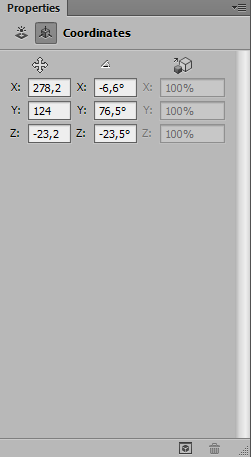
The Coordinates section lets you set position (X, Y, Z), rotation, and scale. A notable feature of Photoshop is that coordinates can be both world-space (relative to the scene center) and local (relative to the parent object). Values can be entered manually for precise positioning down to hundredths of a unit.
Materials and Textures
Photoshop handles materials through texture maps. Each map controls a specific aspect of the surface appearance. A single material can have up to nine different maps configured.
| Parameter | Purpose | Recommended Format |
|---|---|---|
| Diffuse | Base color and surface pattern. Determines the object appearance under basic lighting. | JPEG, PNG, PSD |
| Bump | Height map simulating surface relief. Brighter pixels represent higher areas. | Grayscale, 8-bit, PNG |
| Opacity | Transparency mask. White areas are opaque, black areas are fully transparent. | Grayscale, PNG |
| Reflection | Reflection map. Determines which surface areas reflect the environment. | JPEG, HDR, EXR |
| Environment | Environment map for reflections and specular highlights. Used together with Reflection. | HDR, EXR |
| Shininess | Surface gloss level. High values produce sharp highlights, low values produce a matte finish. | Grayscale, PNG |
| Refraction | Refractive index. Water — 1.33, glass — 1.5, diamond — 2.42. | Numeric value |
To load a texture: double-click the texture map icon in the Properties panel and select an image file. To remove a texture, right-click and choose "Remove Texture". To edit an existing texture, click the pencil icon — Photoshop will open the file for editing.
Lighting
A Photoshop 3D scene supports an unlimited number of light sources of three types:
- Point Light — omni-directional light emitting in all directions (like a light bulb). Suitable for soft fill light.
- Spot Light — directional light with a cone (like a stage spotlight). Creates dramatic effects with sharp shadows.
- Infinite Light — distant light simulating sunlight. All rays are parallel, producing crisp shadows.
Each source has adjustable color, intensity, angle, and shadow softness. Light sources can be moved and rotated like regular 3D objects using the same transformation tools.
Render Settings
After assembling the scene, placing lights, and assigning materials, you need to render it — the final calculation that converts the wireframe display into a photorealistic image. To start rendering, go to 3D — Render or click the Render button at the bottom of the 3D panel.
Render settings include:
- Render Quality — from low (draft) to high (final). Higher quality produces more accurate shadows, reflections, and refractions.
- Global Tint — overall color tint for lighting. Lets you tone the scene with warm or cool colors.
- Shadow Softness — shadow softness. Higher values produce realistic penumbras.
- Ground Plane — display the ground plane with shadows. Disabling it makes objects float in space.
- Ray Tracer — ray-tracing algorithm for complex reflection, refraction, and global illumination calculations.
- Bump Map — enable or disable bump maps during rendering.
Keep in mind that rendering in Photoshop is a resource-intensive operation. For large projects, save intermediate results and, if needed, render the scene in parts.
Practical Example: Creating 3D Text
Let us walk through a step-by-step process of creating volumetric text using the 3D panel tools.
- Type your text using the Text tool (Arial font, 120 pt size, bold).
- Right-click the text layer and choose New 3D Extrusion from Selected Layer.
- In the 3D panel, select the text material and set Diffuse to a golden hue (R:218, G:165, B:32).
- Set Shininess to 80% for a metallic sheen.
- Add an Infinite Light and rotate it to a 45-degree angle for expressive shadows.
- In the extrusion properties, set Extrusion Depth to 50 pixels for depth.
- Switch to the Rotate the 3D Object tool and tilt the text 15 degrees around the X axis.
- Render through 3D — Render.
This simple example demonstrates the basic workflow: creation, material setup, lighting, positioning, and rendering. The same principles apply to any 3D object in Photoshop.
Tips for Working with 3D in Photoshop
Here are practical recommendations to avoid common mistakes and speed up your workflow:
- Do not overload the scene. The optimal number of objects per scene is 3–5. More than that will make work uncomfortable even on a powerful PC. Split complex compositions into separate files.
- Use material presets. Photoshop ships with a library of ready-made materials — an excellent starting point that you can fine-tune for your needs.
- Work with UV unwrapping. If textures apply incorrectly, use Reparameterize UVs for automatic recalculation of texture coordinates.
- Export in the right format. For saving 3D layers, use OBJ or Collada (DAE). For 3D printing, STL is the preferred format.
- Combine 3D with regular layers. Add adjustment layers, masks, and effects above the 3D layer for final image polish.
- Use modifier keys. Holding Shift while rotating constrains the step to 15 degrees. Alt duplicates a 3D object when dragging.
Tap to react