What Is Isometric 3D Map Generator 2?
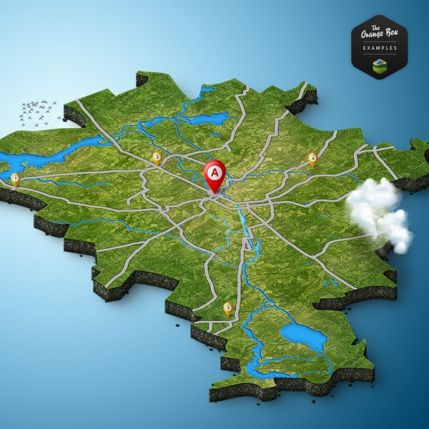
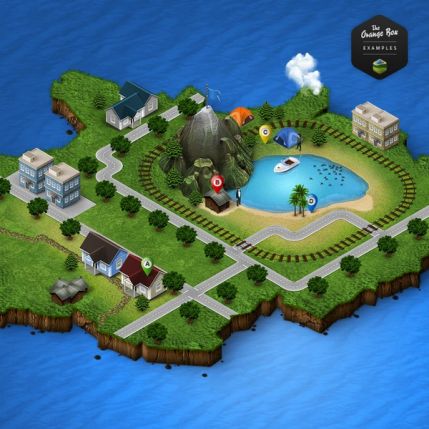
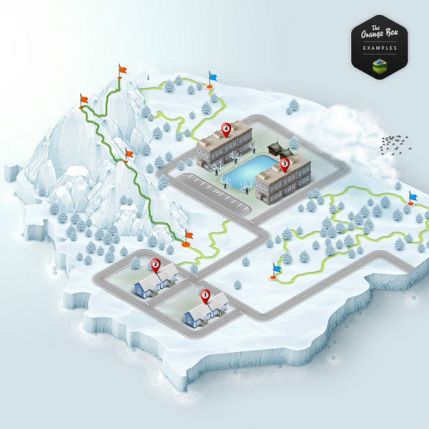
3D Map Generator 2 — Isometric is a premium Photoshop action that represents a complete redesign of the immensely popular 3D Map Generator Pro. While the original plugin focused on extrusion-style 3D maps from standard geographic data, version 2 shifts entirely into the isometric paradigm. This is not an incremental update — it is a ground-up rebuild tailored specifically for isometric terrain generation.
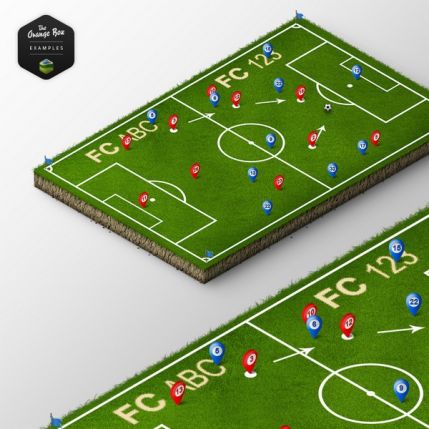
The core innovation lies in the ability to define the exact size of your 3D map. Earlier versions locked you into predefined dimensions. Now you can create anything from small 500x500 pixel game tiles to massive 5000x5000 pixel landscape posters. The action supports multiple isometric orientations — four cardinal directions — giving you complete freedom to compose your scene from any angle.
Isometric projection is particularly valuable in game development and infographic design because it conveys three-dimensional depth while maintaining precise pixel alignment. Unlike true 3D perspective, isometric views keep parallel lines parallel, making it easier to tile, repeat, and assemble modular map elements. 3D Map Generator 2 capitalizes on this by offering a streamlined workflow that produces consistent, ready-to-use isometric terrain in minutes.
\u{201c}New unique textures and surface effects let you build a custom 3D map from scratch and adjust every detail at any stage of the process.
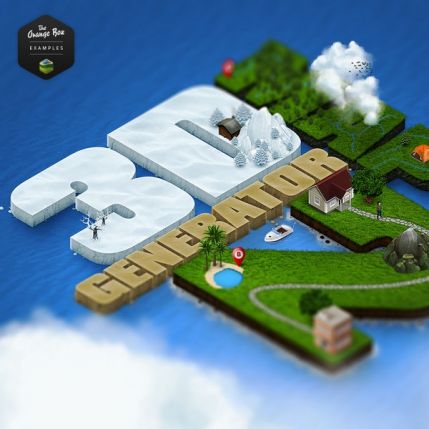
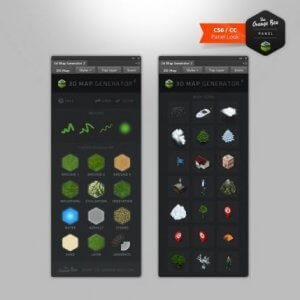
The action ships with over fifty high-resolution textures covering grass, stone, sand, water, snow, pavement, wood, and more exotic surfaces like lava and crystal. Each texture is pre-aligned to the isometric grid, so you never need to manually rotate or skew images. Combined with ten background gradient presets, five cinematic color LUTs, and thirty-plus pre-built objects, this toolkit turns Photoshop into a dedicated isometric map studio.
Beginners benefit from the one-click automation — select a preset, press play, and watch your map assemble layer by layer. Professionals appreciate the manual override: every generated layer remains fully editable, and the action exposes internal parameters for custom scripts and advanced compositing workflows.
Key Features of 3D Map Generator 2
This section breaks down every major capability so you understand exactly what the action offers before you purchase.
Custom Map Size Control
Unlike its predecessors, 3D Map Generator 2 lets you input exact pixel dimensions for your map canvas. The action scans the document boundaries and generates terrain that fills the specified area. This means you can produce maps tailored to specific screen resolutions, print sizes, or game engine tile requirements. The resize sub-action even allows post-generation adjustments — select the map layer group, run Resize Map, and enter new dimensions.
Multiple Isometric Orientations
Switching between the four isometric views — north-east, north-west, south-east, south-west — changes the lighting and shadow directions automatically. This is crucial when composing multi-tile maps or matching an existing art style. The action recalculates drop shadows, occlusion, and highlight positions with each orientation switch.
Rich Texture Library
The package includes 50+ professionally photographed and digitally painted textures. Categories include natural surfaces, stonework, synthetic materials, and fantasy surfaces. Every texture loops seamlessly and conforms to isometric projection with correct foreshortening.
Background and Atmospheric Effects
Background effects include gradient sky presets, atmospheric haze layers that fade distant objects, and vignette overlays. These are applied as non-destructive adjustment layers, so you can tweak opacity, masking, and blending modes at any time.
Object Placement System
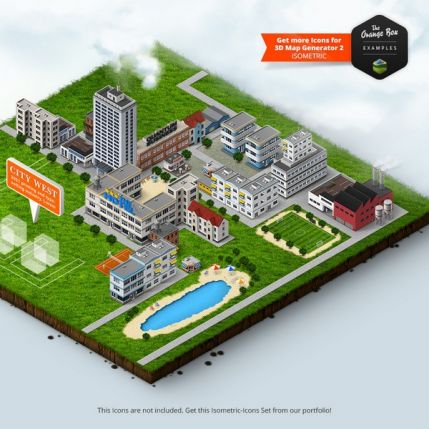
Thirty pre-built objects are organized into categories: vegetation, architecture, terrain features, and infrastructure. Each object is a grouped set of layers with built-in shading. Placing an object is as simple as selecting the category and clicking the target layer — the action automatically positions and aligns it to the isometric grid.
Smart Shadow Generation
The finalization step applies consistent drop shadows across all terrain and objects. Shadows respect the isometric light source direction and include ambient occlusion for corners and crevices. The shadow layer is generated as a separate multiply-layer, so you can adjust its intensity, color, or even mask out specific areas.
Layer-Based Non-Destructive Workflow
Every element — base terrain, textures, objects, shadows, effects — resides on its own layer or layer group. Action-generated layers are named and color-coded for easy identification. You can hide, delete, or modify any element without affecting the rest of the composition.
Color Grading Presets
Five custom LUTs provide instant color grading: cinematic warm, cold desaturated, high contrast, fantasy vibrant, and retro faded. Apply them as adjustment layers to unify the entire map palette with a single click.
What Is Included in the Package
- Photoshop action file with 12 sub-actions
- 50+ high-resolution seamless textures
- 30+ pre-built isometric objects as PSD layer comps
- 10 background gradient presets
- 5 color grading LUTs
- Detailed PDF user manual with 40 illustrated pages
- Bonus: 10 isometric icon templates
- Bonus: 5 map layout wireframes for game levels
Comparison: 3D Map Generator Versions and Alternatives
Detailed feature comparison across the entire 3D Map Generator product family and popular alternative tools.
| Feature | 3D Map Generator v1 | 3D Map Generator Pro | 3D Map Generator 2 Isometric |
|---|---|---|---|
| Map size control | Fixed 1024x1024 | Preset sizes only | Any custom dimensions |
| Isometric orientations | None perspective only | None perspective only | 4 cardinal directions |
| Texture library size | 20 textures | 35 textures | 50+ textures |
| Object placement | Manual basic shapes | Pre-built auto-placement | Smart alignment 30+ objects |
| Background effects | No | Basic gradients | 10 presets + atmospheric haze |
| Layer organization | Flat layer structure | Basic groups | Smart groups color-coded |
| Shadow rendering | No | Basic drop shadow | Ambient occlusion + smart shadows |
| Color grading | No | No | 5 LUT presets |
| Commercial license | Yes | Yes | Yes |
| Price | $12 | $25 | $35 |
Third-Party Alternatives for Isometric and 3D Map Creation
| Tool | Platform | Learning Curve | Best Suited For | Price |
|---|---|---|---|---|
| 3D Map Generator 2 | Photoshop | Low | Isometric game tiles infographics fantasy maps | $35 |
| Azgaar Fantasy Map Generator | Web browser | Medium | Procedural fantasy world maps | Free |
| Inkarnate | Web browser | Medium | Hand-drawn style fantasy map illustration | Free / $25 per year |
| Wonderdraft | Windows / Mac | Low | Regional and continental maps | $29.99 |
| Blender + GIS addon | Blender | High | Realistic 3D terrain rendering | Free |
| Campaign Cartographer 3+ | Windows | High | Professional fantasy RPG maps | $44.95 |
| Dungeondraft | Windows / Mac | Low | Battle maps and dungeon layouts | $19.99 |
How to Install 3D Map Generator 2 in Photoshop
Installing the action follows the standard Photoshop procedure for loading third-party action sets. The steps are identical on both Windows and macOS.
- Download the ZIP package from the author website after purchase. The download link is sent to your registered email immediately after payment confirmation.
- Extract the archive using any unzip utility. Choose a permanent folder — the action file needs to remain on disk.
- Launch Adobe Photoshop. The action supports Photoshop CS6 and all Creative Cloud releases up to the latest 2025 version.
- Open the Actions panel: go to Window → Actions or press Alt+F9 on Windows or Option+F9 on macOS.
- Click the panel menu icon and select Load Actions from the dropdown menu.
- Navigate to the folder with extracted files, select 3D_Map_Generator_2_Isometric.atn, and click Load.
- The action set appears in the Actions panel under the name 3D Map Generator 2 ready to use.
Post-Installation Setup
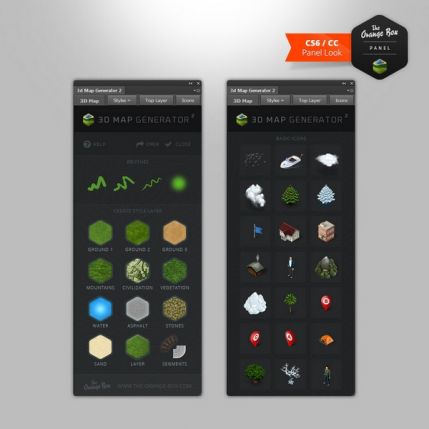
After loading you will see twelve sub-actions organized in logical workflow order: Setup Canvas, Generate Flat Terrain, Generate Hilly Terrain, Generate Mountainous Terrain, Apply Texture, Place Objects, Add Shadows, Add Background, Color Grade, Finalize Map, Resize Map, Export PNG/JPEG.
Keep the /textures and /objects folders in the same directory as the .atn file for the action to function correctly.
How to Create Your First Isometric Map
Step 1: Prepare the Canvas
Create a new Photoshop document. Use 2000x2000 pixels at 300 dpi with a transparent background. The action works with any canvas size but a square format is easiest for the first attempt.
Step 2: Run Setup Canvas
Select the 00 Setup Canvas sub-action and click Play. This creates a reference grid layer that helps you visualize the isometric axes. You can hide or delete this grid later.
Step 3: Generate Terrain
Choose a terrain type. Select 01 Generate Flat Terrain and press Play for a flat isometric grid. Use 02 Generate Hilly Terrain for gentle slopes or 03 Generate Mountainous Terrain for sharp peaks and deep valleys.
Step 4: Apply Textures
Run the 04 Apply Texture sub-action. A dialog box prompts you to select a texture category. Click any swatch to preview it on the canvas. The action applies the texture across all tiles respecting the isometric perspective automatically.
Step 5: Add Objects
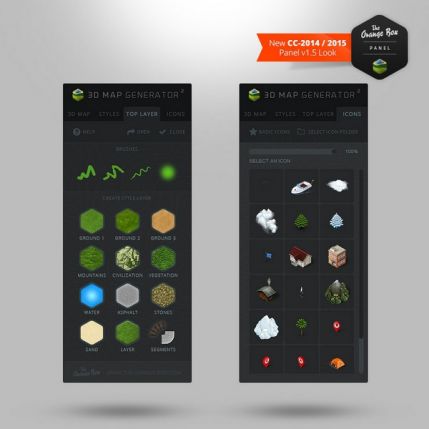
Run 05 Place Objects. The object browser shows thumbnails of all available elements. Click a thumbnail then click on any tile to place the object. The object snaps to the isometric grid automatically. Repeat to populate your landscape with trees buildings rocks and paths.
Step 6: Apply Shadows and Lighting
Run 09 Finalize Map. This combines shadow rendering background application and color grading into one automated pass. The shadow layer appears as a separate group named Shadows with multiply blending mode. Reduce group opacity to 60-70 percent for a more subtle effect.
Step 7: Export
Run 11 Export PNG/JPEG. The action flattens a copy of the visible layers and opens the Save dialog. Choose PNG for lossless quality or JPEG for smaller file sizes.
Advanced Techniques and Professional Tips
Custom Texture Integration
You can add your own textures by placing PNG files in the /textures folder. Each texture should be seamless and pre-aligned to the isometric grid at 26.565 degrees. The recommended resolution is 512x512 or 1024x1024 pixels.
Layer Blending for Surface Variety
Duplicate a texture layer and change the blend mode of the top copy to Overlay or Soft Light. Adjust opacity to taste. This creates rich surface variation without needing additional texture files.
Multi-Tile Composite Maps
For large maps generate multiple terrain tiles in separate documents then assemble them in one master document. Align them using the isometric grid reference layer. Apply Add Shadows to the merged layer set for consistent lighting across the entire composition.
Contour Line Editing
Use Photoshop Pen Tool to draw contour lines on a new layer above the terrain base. Select the area between contour lines with the Magic Wand then run the Terrain Stamp sub-action to raise the selected region.
Color Grading with Custom LUTs
The package includes five .cube LUT files. You can load additional LUTs by placing them in the /luts folder. Apply them via Layer → New Adjustment Layer → Color Lookup and select Load 3D LUT.
\u{201c}The real power of 3D Map Generator 2 lies not in automation alone — it is the flexibility to customize every layer manually after the generation process completes.
Performance Optimization
For large maps Photoshop may slow down due to the number of individual tile layers. Merge texture layers once satisfied with placement. Rasterize smart objects you no longer need to edit. Turn off layer thumbnails in the Layers panel preferences. Work at 72 dpi during design and switch to 300 dpi for final export.
Practical Use Cases and Applications
Game Development
Isometric tile-based games remain popular in indie development. The action output integrates directly with game engines like Unity Godot and GameMaker through standard PNG export. Use the tile-based terrain generation to create environments for strategy games city-building simulators and tactical RPGs.
Infographics and Data Visualization
Isometric charts attract viewer attention and communicate complex data more effectively than flat 2D graphs. Use the flat terrain preset as a base then overlay colored tiles to represent data regions.
Architectural Visualization
Present building layouts master plans and urban development projects in isometric view. The top-down isometric angle shows both floor plan layout and elevation simultaneously.
Fantasy and Concept Art
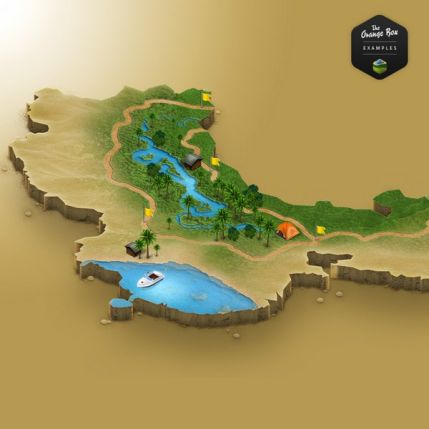
Authors game masters and concept artists use the action to create custom maps for books tabletop RPG campaigns and visual development boards. The ability to quickly iterate terrain layouts makes it ideal for world-building sessions.
UI and Icon Design
The bonus icon templates provide a starting point for creating isometric UI elements: progress indicators navigation icons data meters and hero section illustrations.
Frequently Asked Questions
What version of Photoshop does 3D Map Generator 2 require?
The action works with Photoshop CS6 and all Creative Cloud versions from CC 2014 through CC 2025. It uses standard Photoshop features and does not require the Extended 3D module. Both Windows and macOS are supported.
Can I use my own custom images as textures?
Yes. The action loads textures from PNG files in the /textures folder. You can add replace or remove textures at any time. The recommended resolution is 512x512 or 1024x1024 pixels in RGB color mode.
Does the action work with non-English versions of Photoshop?
Yes. The action is language-independent and uses internal Photoshop identifiers that do not change with localization. Switching Photoshop to English temporarily is the simplest workaround if needed.
Can I change map dimensions after terrain generation?
Yes. Select the map layer group and run the 10 Resize Map sub-action. Enter new width and height in pixels. The action scales all terrain textures and objects proportionally while preserving isometric perspective.
Is there a batch processing mode?
The action set does not include a dedicated batch processor but you can use Photoshop built-in automation tools. Create a droplet from the action using File → Automate → Create Droplet or use the Image Processor script.
What is the difference between 3D Map Generator Pro and version 2?
Version 2 is a complete architectural rewrite. Differences include native isometric projection with 4 orientations fully adjustable map dimensions texture library expanded to 50+ surfaces automated smart shadows with ambient occlusion five color grading LUTs and improved layer organization.
Can I use generated maps commercially?
Yes. Purchase includes a royalty-free commercial license for all output. You may use generated maps in client projects commercial game titles print publications video productions and digital products without additional royalties.
Is the action compatible with macOS and Windows?
Both. The .atn action file format is platform-independent and functions identically on macOS 10.15+ and Windows 10/11. The included texture and object folders use standard formats that are fully cross-platform.
How do I receive updates?
Updates are distributed via the author website. When you purchase you are registered for lifetime updates to the current major version. Update notifications are sent to your purchase email. Download the latest ZIP package from your customer account page.
Can I combine this with other Photoshop plugins?
Absolutely. The action outputs standard Photoshop layers and layer groups. You can apply any filter adjustment layer plugin or third-party extension on top of the generated content.
Conclusion
Isometric 3D Map Generator 2 represents a significant step forward in Photoshop-based terrain generation. It transforms a traditionally manual and time-consuming process into an automated predictable and highly customizable workflow. The action succeeds at being both beginner-friendly and professional-grade — a rare combination in the Photoshop add-on market.
For game developers the tile-based output and multi-orientation support make it a practical tool for asset production. For designers the combination of rich textures atmospheric effects and color grading delivers presentation-ready visuals in minutes. The commercial license removes ambiguity about usage rights and the layer-based architecture ensures creative flexibility.
Tap to react