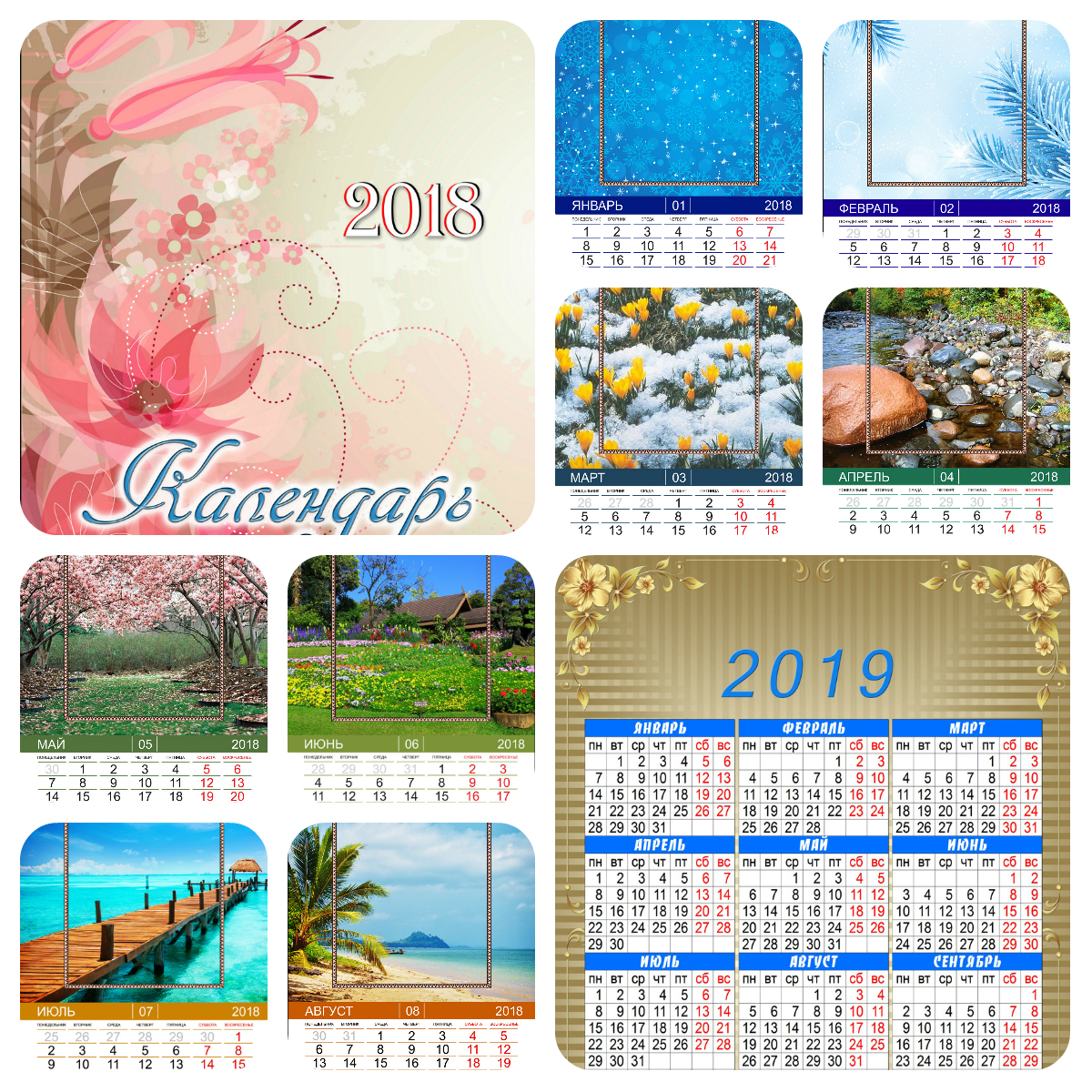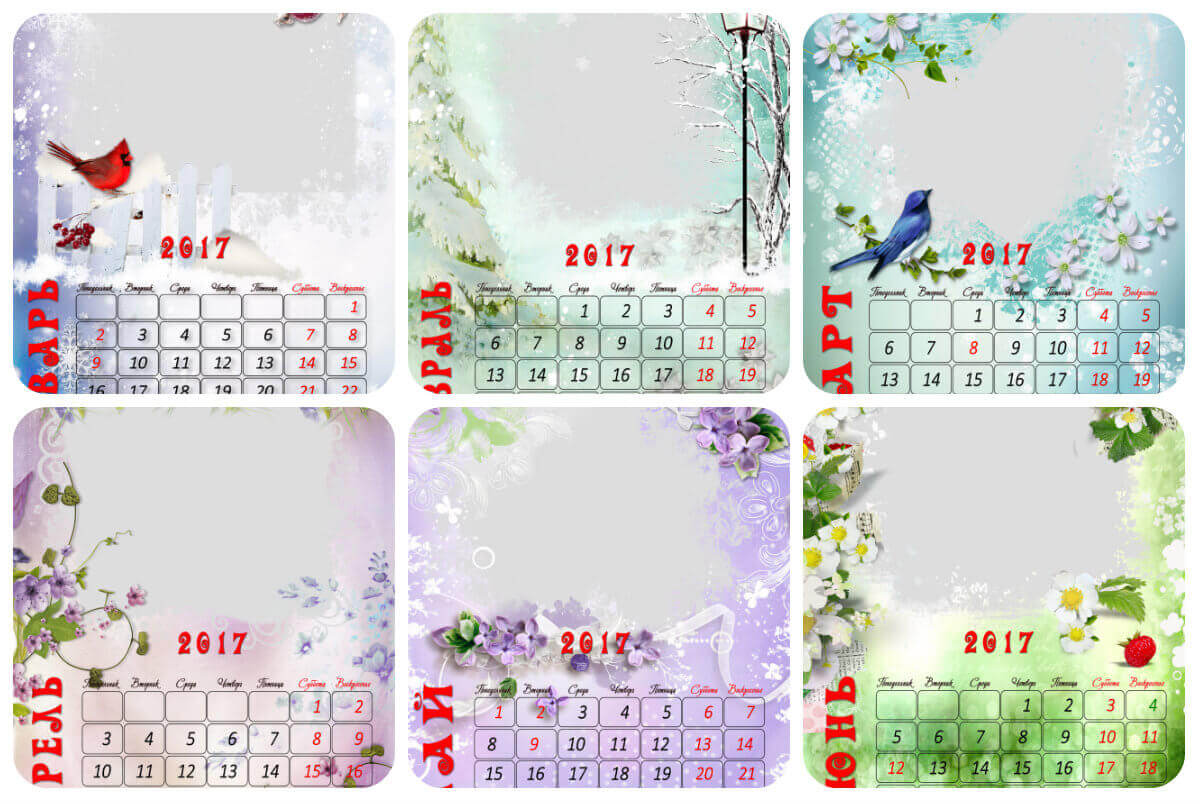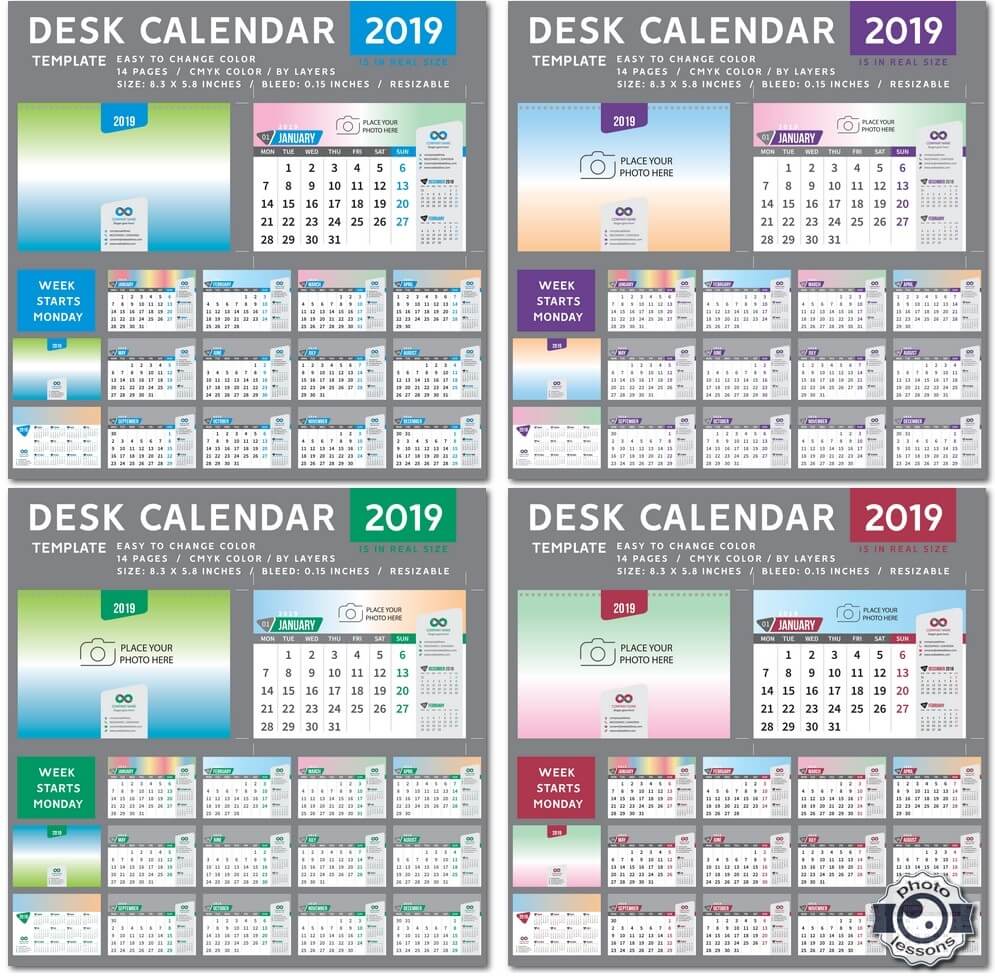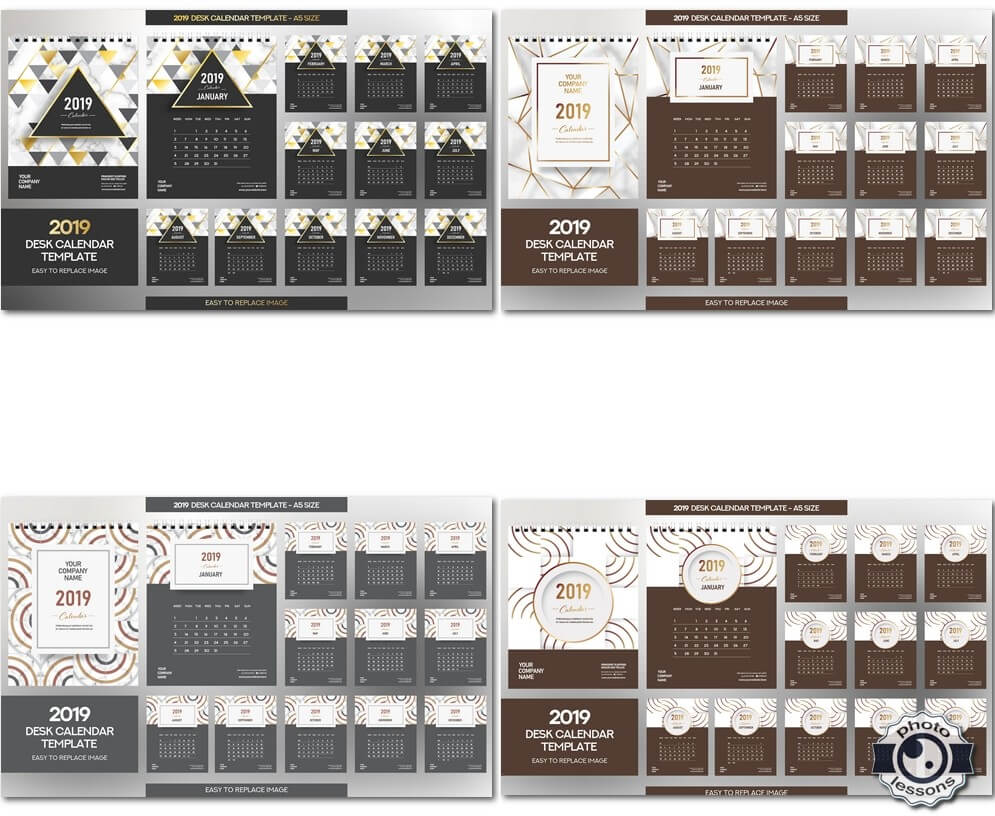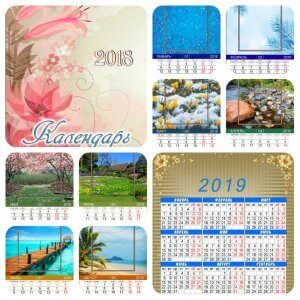
Planning a year ahead is a smart habit, and having your own photo calendar on the wall makes the process so much more enjoyable. The 2018 wall calendar PSD template I want to show you today is not just another generic layout. It is a full 12-month flip calendar built in Adobe Photoshop with separate PSD files for every single month plus a bonus calendar grid for 2019.

2018 wall calendar collage

I have tested this template with several print shops, and I can say with confidence — it delivers. The resolution sits at 3661-5197 pixels at 300 dpi, which means you get crisp, professional results at poster size. The entire pack weighs 637 MB compressed, and inside you get 14 PSD files ready for your own photos and dates.

\u{201c}

A good calendar is not just a date tracker — it is a daily reminder of what matters most to you. Customise each month with your best shots and watch your wall come alive.

In this article I will walk you through everything you need to know: how to open and edit the template, which tools work best for replacing photos, what to watch out for when preparing files for print, and what alternatives exist if this particular style does not fit your project.

What Is Inside the 2018 Wall Calendar PSD Pack

Before you dive into editing, let me break down the contents so you know exactly what you are working with. The archive is structured month by month, which makes navigation simple and keeps your layers organised.

File Content Resolution Purpose
January.psd January page with grid + photo slot 3661 x 5197 px Main month layout
February.psd — December.psd Each month separately 3661 x 5197 px Full year coverage
2019-grid.psd Bonus calendar grid for 2019 3661 x 5197 px Bonus next-year reference
Cover.psd Calendar cover page 3661 x 5197 px Front page design

Each PSD file comes with clearly labelled layers. You will find a dedicated layer for the background, one for the photo placeholder, and separate layers for the calendar grid and typography. This makes replacing elements straightforward even if you are not an advanced Photoshop user.

All PSD files use the same dimensions and colour profile (CMYK if provided, otherwise sRGB IEC61966-2.1). Keep this in mind when exporting for different print services — some prefer CMYK, others handle sRGB just fine.

How to Edit the Calendar Template in Photoshop

Editing this template is designed to be beginner-friendly, but there are a few tricks that will save you time. I will show you the workflow I use when preparing calendars for my own clients.

Step 1: Open the PSD File

Double-click the PSD file for the month you want to edit. Photoshop will open the file with all layers intact. If you see a missing font warning, click OK and replace the font with one you have installed — I recommend Arial, Roboto, or Open Sans for clean readability.

Step 2: Replace the Photo

Find the layer named Photo Placeholder or Image in the Layers panel. Right-click the layer and choose Place Linked or simply drag your image directly onto the canvas. Resize using Ctrl+T (Cmd+T on Mac) and hold Shift to keep proportions. Use a clipping mask if the placeholder has a non-rectangular shape — right-click the image layer and select Create Clipping Mask.

Step 3: Adjust Dates and Holidays

The calendar grid is fully editable. Select the type tool (T) and click on any date number to change it. If you want to highlight holidays or special dates, create a new layer, pick a bright accent colour, and paint over the date cells. For busy designers, I suggest marking all major holidays at once using a separate layer with red markers.

Step 4: Export for Print

Once you finish editing, go to File > Save As and choose TIFF or PDF for print. Make sure the resolution stays at 300 dpi and the colour mode matches your print shop's requirements. If you need to share online, export as JPEG with quality set to 10 or higher.

Recommended export settings:
Format: TIFF (LZW compression)
Resolution: 300 dpi
Colour: CMYK (for professional print) or sRGB (for home/online)
Layers: Flatten before export
Embed ICC profile: Yes
Check with your print service beforehand

Comparison Table: Calendar Template Alternatives

Not every project needs a flip calendar. Below is a comparison of popular calendar formats so you can pick the right one for your needs.

Type Best For Complexity File Size Print Cost
Flip calendar (this template) Home, office, gift Medium Large (50+ MB) Medium
Wall poster calendar Single-page wall art Low Small-10 MB Low
Desk calendar (triangular stand) Workspace, corporate gifts High Medium-30 MB High
Magnetic photo calendar Refrigerator, small spaces Low Small-5 MB Very low
Photo book calendar Premium gift, anniversary High Very large-200 MB High

Avoid scaling the PSD canvas below 2000 px on the short side if you plan to print. Posters and flip calendars require at least 240 dpi for acceptable quality. Below that, text and photo details will appear blurry.

Design Tips for a Stunning Photo Calendar

Over the years I have designed dozens of calendars for clients ranging from real estate agents to wedding photographers. Here are the principles that consistently produce the best results.

Choose Photos With Consistent Lighting

A flip calendar shows all twelve pages side by side at the end of the year. If one month is a dark moody portrait and the next is a bright sunny landscape, the visual disconnect will be jarring. Try to select photos that share a similar tone and colour temperature. For example, warm golden-hour shots work beautifully across all seasons.

Leave Breathing Room for the Grid

The calendar grid takes up about 30-40 % of the page. When you crop your photos, leave enough space on the bottom half of the image so the date numbers do not cover important details. A simple rule: compose your subject in the top two-thirds of the frame.

Use Typography as a Design Element

The month name and dates are not just functional — they are part of the design. Choose a font that matches the mood of the photo. A hand-written script works for romantic portraits, while a bold sans-serif fits urban and architectural shots. Keep the size readable from a distance of at least 2 metres.

Add Personal Highlights

Mark birthdays, anniversaries, and holidays directly on the grid. Use a subtle colour like soft red or gold so the marks do not overpower the photo. This turns a generic calendar into a personal keepsake.

Preparing Your Calendar for Print

I have seen too many beautifully designed calendars ruined at the print stage. Here is a checklist that I run through before sending any file to the printer.

  • Check resolution: Every exported file must be at least 300 dpi at the final print size. Lower resolutions produce pixelated results.
  • Convert to CMYK: Most commercial printers require CMYK colour mode. Convert via Edit > Convert to Profile and choose a standard CMYK profile like FOGRA39 or US Web Coated SWOP.
  • Add bleed: If your print shop requires bleed, extend the background by 3-5 mm on each side. Without bleed, white edges may appear after trimming.
  • Embed fonts: Convert all text layers to shapes (Right-click > Convert to Shape) or outline them to avoid font substitution at the print shop.
  • Proofread dates: Double-check that the day-of-week alignment is correct for 2018. The year 2018 starts on a Monday.
  • Request a proof: Always ask for a physical or digital proof before printing the full batch. A small test print reveals colour shifts and layout issues.

I once skipped the bleed step on a batch of 50 calendars for a corporate client. The print shop trimmed 2 mm inside the design and cut off part of the January grid. That lesson cost me a rush reprint. Do not repeat my mistake — always add bleed.

Software and Tools for Calendar Design

While this template is built for Photoshop, you can adapt it for other tools if needed. Here is my take on the best software options for calendar projects.

  • Adobe Photoshop — the most versatile. Supports full layer control, smart objects, colour management, and advanced typography. Best for photo-heavy designs.
  • Adobe InDesign — excels at multi-page documents. If you plan to print a bound calendar, InDesign handles spreads, bleeds, and pagination better than Photoshop.
  • Canva — a great free alternative for beginners. Limited layer control but very intuitive. Suitable for simple desk calendars and posters.
  • Affinity Photo — a one-time purchase alternative to Photoshop. Supports PSD import with good fidelity. Ideal for budget-conscious designers who still need professional features.
  • GIMP — completely free and open-source. Supports PSD files but may have compatibility issues with complex layer styles and smart objects.

Frequently Asked Questions

Can I use this calendar template for commercial projects?

Yes, you can use the calendar for personal and commercial projects. However, you may not resell the PSD template itself. If you create calendars for clients using this template, that is perfectly fine — just do not redistribute the raw files.

What version of Photoshop do I need to open the PSD files?

These files were created in Photoshop CS6 and later. They open without issues in Photoshop CC 2014 through 2025 and newer. If you use an older version, some layer effects may not display correctly.

Why is the file size so large (637 MB)?

The archive contains 14 separate high-resolution PSD files at 3661 x 5197 pixels with multiple layers, smart objects, and high-quality embedded previews. The resolution is deliberately high to support large-format printing up to A2 and beyond.

How do I change the font in the calendar?

Select the text layer in the Layers panel, then choose a new font from the Character panel (Window > Character). If the font you want is not installed, download it and install it on your system before reopening the file. For maximum compatibility, use Google Fonts like Roboto, Montserrat, or Open Sans.

Can I translate the month names into another language?

Absolutely. Each month name is on its own text layer. Select the text tool, click on the month name, and type the translated version. Adjust the font size and position if the new text is longer or shorter than the original.

What if I only need one or two months from the set?

You can open individual PSD files without extracting the full archive. The files are not dependent on each other. However, for consistent design across the months, I recommend editing all files with the same photo style and font choices.

How do I add my logo or branding to the calendar?

Create a new layer above the background layer. Place your logo file, resize it with Ctrl+T, and position it in the bottom or top corner. Reduce opacity to 50-70 % if you want a subtle watermark effect. For printed calendars, keep the logo small enough not to distract from the photo.

Is the 2019 grid the same style as the 2018 pages?

Yes, the bonus 2019 grid file follows the same layout and resolution as the main 2018 pages. You can edit it the same way and use it as a bonus page at the end of your printed calendar.

Can I print this calendar at home on my own printer?

Yes, but be aware that home printers typically use sRGB colour space and have lower colour accuracy than professional print shops. For best results at home, export as high-quality JPEG (quality 12), set the paper type to photo glossy or matte, and select the highest print quality setting on your printer.

What paper size should I use for printing?

The template dimensions are optimised for A2 (420 x 594 mm) and A3 (297 x 420 mm) formats. You can scale down to A4 or US Letter, but the text and grid may become small. For a standard flip calendar, A3 is the sweet spot between visibility and cost.

Tap to react