Yoast SEO: The Complete Guide to WordPress Blog Promotion

WordPress by itself is a great platform for SEO. URL structure, automatic meta tags, clean code — it's all there. But if you want to squeeze maximum value from every article and outrank competitors in search, you need a specialized plugin. Yoast SEO is the most popular SEO plugin for WordPress, installed over 5 million times.

Here's the thing: the plugin doesn't just "check boxes" and show a pretty traffic light. It genuinely helps: analyzes content for SEO compliance, handles technical site optimization, generates sitemaps for search engines, adds structured data. Let's figure out how to use it properly and which features actually matter.

What is Yoast SEO and Why You Need It

Yoast SEO is a WordPress plugin that automates technical optimization and helps you write SEO-friendly content. Created by a team of specialists from the Netherlands who've been doing search optimization since 2007. Over the years, they've accumulated vast experience and implemented best practices into their product.

The plugin solves several key tasks:

  • Automatically generates meta tags title and description
  • Creates XML sitemap for search engines
  • Adds breadcrumbs for navigation
  • Analyzes content for SEO optimization
  • Checks text readability
  • Adds Open Graph markup for social networks
  • Manages page indexing

The plugin comes in two versions: free and premium. The free version covers about 90% of an average blogger's or small site owner's needs. Premium adds advanced features: redirect manager, multiple keyword support per page, priority support from developers, social snippet preview.

Yoast SEO Version Comparison Table

Free vs Premium Yoast SEO — what you get
FeatureFreePremium
SEO Content AnalysisYesYes, extended
Keywords per page1Up to 5
301 Redirect ManagerNoYes
XML SitemapYesYes
BreadcrumbsYesYes
Readability AnalysisYesYes
Open Graph markupYesYes
Schema.org markupBasicExtended
Social previewNoYes
SupportForumPriority
PriceFree$99/year

As you can see, the free version is quite functional. Premium is worth buying if you actively work with redirects or optimize articles for multiple keywords simultaneously.

Installation and Initial Setup

Installing Yoast SEO is standard for any WordPress plugin. Go to admin panel, select Plugins → Add New, search for "Yoast SEO", click "Install", then "Activate".

After activation, the plugin offers a setup wizard. This is an important step — don't skip it, otherwise you'll have to configure everything manually later.

Step 1: Site Type Selection

The plugin asks what your site represents: blog, online store, corporate site, portfolio. Default settings depend on this. For a blog choose "Blog", for a store — "Webshop".

Step 2: Site Profile

Enter site name and brief description. This data will be used on the homepage and in auto-generated meta tags. The name should be recognizable, the description should briefly explain what the site is about.

Step 3: Social Media

Connect Facebook and Twitter accounts if you have them. The plugin automatically adds Open Graph markup, thanks to which links to your site will display beautifully in social networks — with correct title, description and image.

You can skip the setup wizard and return later via SEO → General. But it's better to go through it right away — this saves time on manual configuration in the future.

Configuring Titles and Meta Descriptions

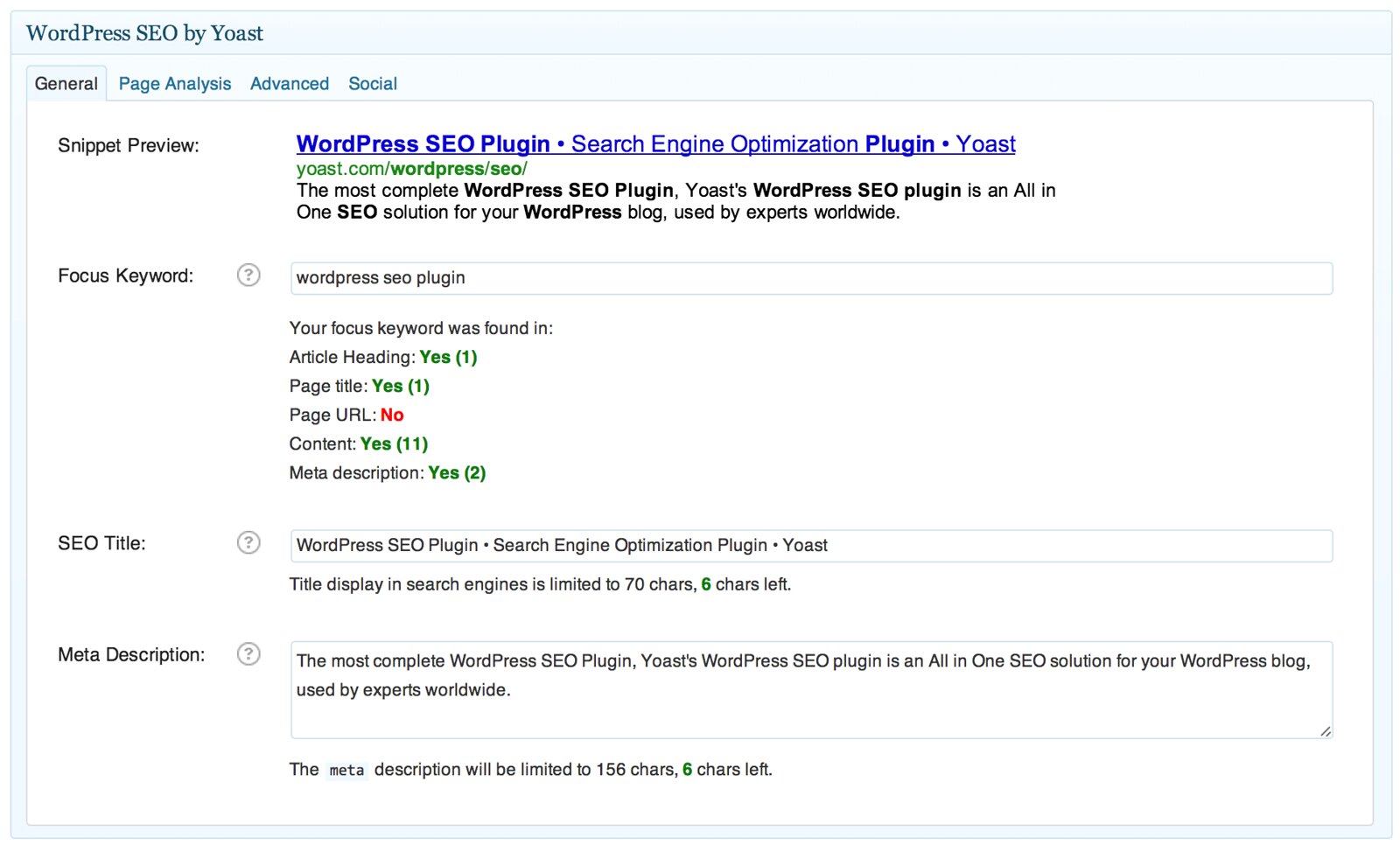
One of Yoast SEO's main functions is automatic generation of meta tags title and description. But relying solely on automation isn't worth it. Better to write them manually for each important page.

Go to SEO → Titles & Meta. Here you configure templates for different page types on your site:

  • Posts — individual blog articles
  • Pages — static pages (About, Contact)
  • Categories — category pages
  • Tags — tag pages
  • Author Archives — pages with posts by specific author
  • Date Archives — pages with posts for specific date

For each type you can set title and description templates. Use special variables for automatic substitution:

  • %%title%% — page or article title
  • %%sitename%% — site name from settings
  • %%excerpt%% — post excerpt (quote)
  • %%category%% — category name
  • %%date%% — publication date
  • %%name%% — author name

Example of a good title template for posts: %%title%% | %%sitename%%. This gives a title like "Article Name | Site Name". For description you can use %%excerpt%%, but it's better to write descriptions manually.

Optimizing Individual Articles: Step-by-Step Process

When you create or edit an article, you'll see a Yoast SEO block below the editor. This is your main content optimization tool. Let's break down each element.

1. Focus Keyword

Enter the main keyword you're optimizing the article for. The plugin analyzes: is this word in the title, meta description, URL, H2-H6 subheadings, first paragraph, body text, image alt attributes.

Analysis result is shown by traffic light:

  • Green — everything's great, optimization at high level
  • Orange — room for improvement, but no critical issues
  • Red — critical issues that need fixing
Don't chase all green dots. The main thing is natural text. If SEO optimization makes you write unnaturally, ruins readability — better skip that optimization. Search engines now recognize over-optimized text well.

2. Meta Description

Write a description 120-160 characters long. Include the keyword, but make the text attractive for clicks. This is exactly what users see in search results under the title.

Tips for writing description:

  • Start with the main thing — first words matter most
  • Include call to action: "learn", "read", "download"
  • Don't deceive — description must match content
  • Use numbers and specifics

3. Readability Analysis

Yoast SEO evaluates how easy your text is to read. This isn't just a checkbox — it's a genuinely important metric. The plugin checks:

  • Sentence length — too long sentences are hard to perceive
  • Paragraph length — big "walls" of text scare people off
  • Transition words — "moreover", "however", "for example" help connect thoughts
  • Passive voice — active constructions read easier
  • Subheadings — structure the text
  • Word repetition — excessive repetition hurts readability

Try to keep readability at "green" level. This genuinely helps visitors consume content, meaning they stay on site longer.

4. Snippet Preview

Click "Snippet Preview" — you'll see how your page will look in Google search results. This helps understand if the snippet will attract clicks.

XML Sitemap: Setup and Submission to Search Engines

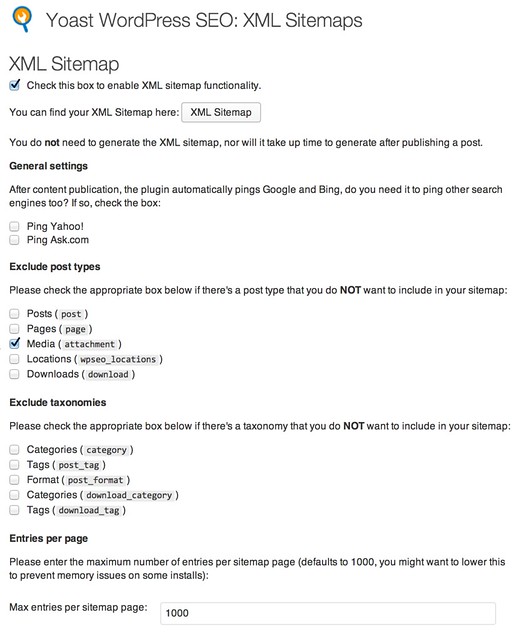
A sitemap is an XML file that helps search engines find and index all pages on your site. Yoast SEO generates it automatically.

Setup: SEO → General → Features → XML Sitemap. Make sure the feature is enabled.

The sitemap is available at: your-site.com/sitemap_index.xml

What Yoast sitemap includes:

  • All published posts
  • All published pages
  • Categories (if not noindexed)
  • Tags (if not noindexed)
  • Images from posts
  • Custom post types (if any)

For large sites, the sitemap automatically splits into parts of 1000 URLs. This is normal — search engines handle such sitemaps without problems.

Submitting Sitemap to Google Search Console

  1. Go to Google Search Console
  2. Select your site
  3. Menu "Indexing" → "Sitemaps"
  4. Enter URL: sitemap_index.xml
  5. Click "Submit"

Submitting Sitemap to Yandex.Webmaster

  1. Go to Yandex.Webmaster
  2. Select site
  3. "Indexing" → "Sitemap files"
  4. Add sitemap URL

Breadcrumbs: Navigation for People and Search Engines

Breadcrumbs are a navigation chain at the top of the page. Example: "Home → WordPress → Yoast SEO: Complete Guide". They show where the current page is in site structure.

Why breadcrumbs are useful:

  • Convenience for visitors — user understands where they are and can go up a level
  • Internal links — improve site interlinking
  • Nice snippet in Google — instead of URL, structure is shown in search
  • Schema.org markup — search engines better understand structure

Setup: SEO → Search Appearance → Breadcrumbs.

If your WordPress theme doesn't support breadcrumbs automatically, add code to your theme's header.php or single.php file, or use a widget.

Yoast SEO vs Alternatives Comparison

Yoast SEO vs Rank Math vs All in One SEO — what to choose
ParameterYoast SEORank MathAll in One SEO
Number of installs5+ million1+ million2+ million
Free featuresManyVery manyAverage
SEO content analysisYesYesNo
Readability analysisYesYesNo
Schema markupBasicExtendedBasic
301 redirectsPremiumFreePremium
WooCommerce supportSeparate pluginBuilt-inSeparate plugin
Setup complexityMediumMediumSimple
RecommendationBlogsStoresBeginners

Rank Math currently offers more free features, including redirect manager and extended Schema markup. But Yoast SEO is time-tested, has better documentation and community. For an average blog, Yoast is an excellent choice. For a WooCommerce store, consider Rank Math.

Technical Optimization with Yoast SEO

Canonical URL

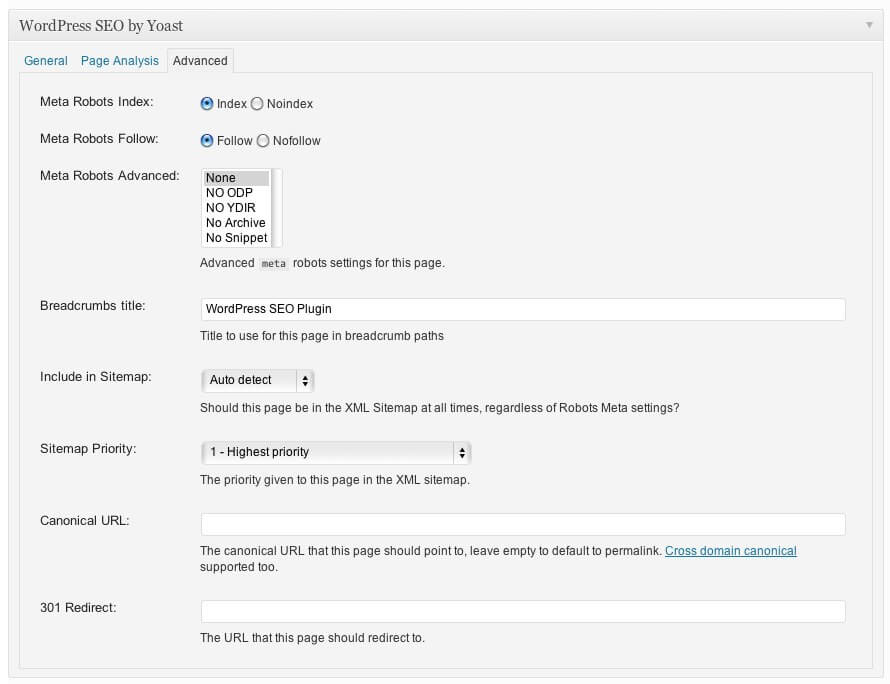
Yoast SEO automatically adds canonical tags to all pages. This protects against duplicate content issues. For each article you can set a custom canonical URL if content is copied from another source.

Robots.txt

The plugin creates a virtual robots.txt. Setup: SEO → Tools → File Editor. Here you can block indexing of certain pages or site sections.

Noindex for Archives

It's recommended to noindex date and author archives — these are content duplicates that don't add value for search. SEO → Titles & Meta → Archives → enable noindex.

Open Graph and Twitter Cards

Yoast SEO automatically adds OG tags for nice previews in social networks. You can set separate images for Facebook and Twitter. Setup: SEO → Social → Facebook / Twitter.

Schema.org Markup

The plugin adds basic structured markup: Article, Organization, Website. This helps search engines better understand content and show extended snippets.

Premium Features: Is It Worth Paying?

Is it worth paying $99/year for Premium? Let's break down the features in detail.

Redirect Manager

Allows setting up 301 redirects right in WordPress. Convenient when changing article URLs, deleting pages, restructuring the site. In the free version, you need a separate plugin like Redirection.

Multiple Keywords

Optimizing an article for 3-5 search queries? In the free version, analysis is only for one word. Premium allows up to 5 keywords and gives analysis for each.

Social Preview

See how your post will look on Facebook and Twitter before publishing. Convenient for checking if title and image pull correctly.

Keyword Synonyms

The plugin understands synonyms and related words. If you're optimizing for "SEO optimization", the plugin will also consider "search engine optimization".

\u{201c}

Premium is worth getting if you regularly change site structure or delete pages. The redirect manager saves tons of time — no need for a separate plugin. For a static blog, the free version is more than enough.

Alex M., SEO Specialist, Moscow

Common Mistakes When Working with Yoast SEO

Mistake 1: Chasing All Green Dots

Green color is a recommendation, not a law. Not all recommendations apply to every article. The main thing is natural text. If SEO makes you write unnaturally — better skip that optimization.

Mistake 2: Not Filling Meta Descriptions Manually

Automatic descriptions often turn out awkward — cut off mid-sentence, don't contain keywords, don't attract clicks. Spend a minute on manual writing — it increases CTR from search.

Mistake 3: Ignoring Readability Analysis

Readability analysis isn't just a checkbox. Text that's hard to read, people close. And behavioral factors (time on site, bounces) affect ranking.

Mistake 4: Not Checking the Sitemap

After installing the plugin, go to /sitemap_index.xml and make sure all important pages are there. Sometimes default settings exclude needed sections.

Mistake 5: Installing Multiple SEO Plugins

Never install Yoast SEO together with All in One SEO, Rank Math or other SEO plugins. They'll conflict, add duplicate meta tags and break indexing.

Integration with Other Plugins and Themes

Yoast SEO works well with most popular WordPress plugins and themes. But there are nuances.

WooCommerce

For online stores there's a separate plugin Yoast WooCommerce SEO ($79/year). It adds Schema markup for products, optimizes shop pages, product categories, product cards.

Caching Plugins

WP Super Cache, W3 Total Cache, Autoptimize can conflict with Yoast. After changing SEO settings, always clear cache, otherwise changes won't apply.

Themes with Built-in SEO

Some premium themes add their own meta tags. This creates duplicates. Disable SEO functions in theme settings or use Yoast filters to disable conflicting functions.

FAQ

Does Yoast SEO slow down the site?

The plugin adds minimal server load. On normal hosting you won't notice a difference. If the site is slow — the problem is likely other plugins, theme or hosting.

Do I need the premium version for a blog?

For an average blog — no. The free version covers all basic needs: meta tags, sitemap, content analysis, breadcrumbs. Premium is needed when actively working with redirects or optimizing for multiple keywords.

Which plugin is better: Yoast SEO or Rank Math?

Yoast is time-tested, has better documentation and community. Rank Math offers more free features, including redirects. For a blog — Yoast, for an online store — Rank Math.

Why aren't all dots green?

This is normal. Not all recommendations apply to every article. The main thing is natural text. Fix red dots, orange — depends on situation.

How to add breadcrumbs to a theme?

Enable in SEO → Search Appearance → Breadcrumbs. If the theme doesn't support automatically, add shortcode [wpseo_breadcrumb] or PHP code to the theme file.

Where to submit the sitemap?

To Google Search Console and Yandex.Webmaster. Add URL /sitemap_index.xml to the "Sitemaps" section.

How to configure Open Graph for social networks?

SEO → Social → Facebook. Enable the option and set a default image. For each article you can set a separate OG image in the Yoast block below the editor.

The plugin conflicts with the theme — what to do?

Some themes add their own meta tags. Disable them in theme settings or add code to functions.php to disable conflicting Yoast functions.

How to transfer settings to another site?

SEO → Tools → Import & Export. Export settings to a file, then import on the new site. You can also import data from All in One SEO and other plugins.

Conclusion

Yoast SEO is an excellent tool for optimizing a WordPress blog. The free version covers most tasks: meta tags, sitemap, content analysis, breadcrumbs, Open Graph. The plugin is time-tested, actively developed and supported.

The key is not to treat the plugin as a magic button that automatically ranks your site at the top. It helps but doesn't do the work for you. Write good content that solves people's problems. Optimize it with Yoast. Configure the technical part. And results will definitely come.

Tip: start with the free version. Master basic functions, configure meta tags, sitemap, breadcrumbs. When you feel the need for advanced features — consider Premium. For most blogs, the free version is more than enough.

Tap to react