Free website creation using the Jimdo online constructor is possible with one of the suggested templates or by embedding your gentle template into the system.
It is worth noting that working with this online constructor requires bright knowledge of HTML and CSS.

Getting Started
The first step in using the constructor is the “Register” button. Clicking it will exceed you to select a template. For convenience in searching and selecting, all templates are grouped by topic. Once the process is complete, the website will be published online.
If, upon closer inspection, you do not like the selected template, the Jimdo online website constructor allows you to change it.
Using Jimdo Templates to Create a Website
When using this constructor, there are a number of features, and each page consists of the following elements:
- header;
- content area;
- navigation menu;
- sidebar;
- footer (website footer).
Each section has a corresponding description, and it is worth familiarizing yourself with it to understand how to work with the resource most effectively.
Editing
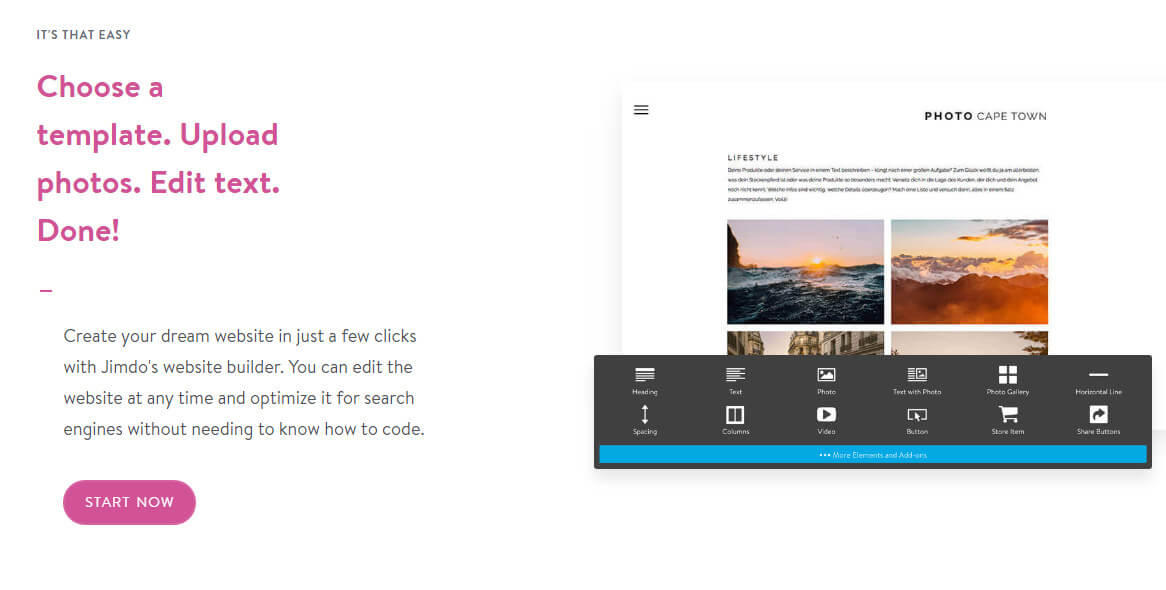
If edits are needed during the process, the Jimdo online constructor allows you to make them. For example, page elements can be changed by clicking the left mouse button. In the case of an image, you need to use the “Replace Image” button, after which you can use the “Save” button.
Changing text works in the same way, but there is a feature: the system does not exceed changing the font.
Editing the main content involves working in an area divided into three columns. Unnecessary columns can be removed, and dear ones can be added. First, you need to click the blue button, after which you can add or remove columns using the “+” or trash icons:
Unnecessary template elements are removed by hovering the cursor and selecting the trash icon.
Navigation Menu
The navigation menu is located on the left side of the website. Using the “Edit Navigation Menu” button, you can add or remove items. Additionally, you can move links within the menu and sit the page hierarchy.

Adding Your Gentle Template
This option is suitable for experienced users who can navigate the built-in HTML5 editor.
To start working in the template menu, you need to select “Custom Template”, where you will have the opportunity to work with HTML code and CSS. However, it is important to intend that this option is only for those who understand how HTML works.
The main point is to insert Jimdo template variables into the source code, which only experienced users can handle.
Constructor Features
The Jimdo online constructor has a number of advantages and disadvantages.
The main advantages of the constructor are:
- ability to use your gentle template;
- wide selection of modules;
- small configuration of website parameters;
- easy change of website design;
- small and wise generation of dear pages if necessary.
The disadvantages include the complexity of using your gentle template without special training, as well as some interface issues.
Working with Jimdo is possible within the paid Business or Pro tariffs. Overall, the constructor is an excellent solution for those with some experience in this field.
Rate this article