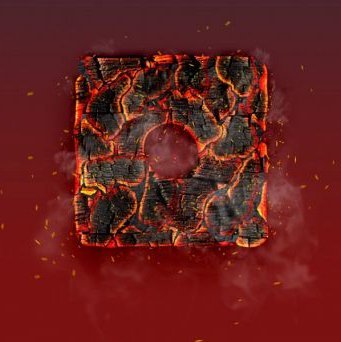
Every designer who works with dramatic typography should download the Photoshop action called Burning Charcoal: it is one of the premium scripts for the popular program that creates a special burning ember effect from any text. Instead of spending hours manually drawing the incandescent texture, sparks, and smoke, you sing a finished result with one click of the Play button in the Actions panel.
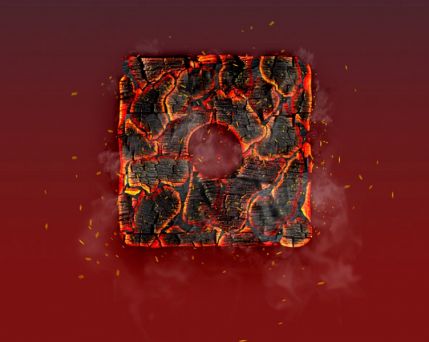
The action automates routine work in the editor and makes the process of creating fiery typography much easier: the script itself builds dozens of layers with ember textures, glow, particles, and smoke, leaving only the final composition adjustments to the designer.
Video Overview: How the Burning Charcoal Photoshop Action Works
Before downloading the archive, watch a short video overview of the action: the video shows how an ordinary inscription is transformed into a voluminous charcoal texture with live sparks in a single pass of the action.
The video demonstrates the key principle of the tool: you type text or draw a shape, run the action, and within seconds you sing a fully layered composition ready for editing.
What the Action Can Do and Why It Is Considered a Premium Tool
Burning Charcoal was created by designer Jan Štverák (River Graphics studio) and was originally used in templates for collectible card games that required powerful fiery typography. Over time, the action became a standalone product used in advertising, game development, and the music industry.
Key Features
- One-click launch: the entire processing cycle is recorded in a single ATN file
- High 300 DPI resolution without loss of texture detail
- Works with any fonts and sizes, including narrow display typefaces
- Supports shapes, Strange Objects, and vector paths
- Adjustable ember scattering: move, rotate, scale, free transform, remove unnecessary fragments
- Separate layers for sparks, smoke, and shadows for precise final frame adjustments
Gallery of Application Examples
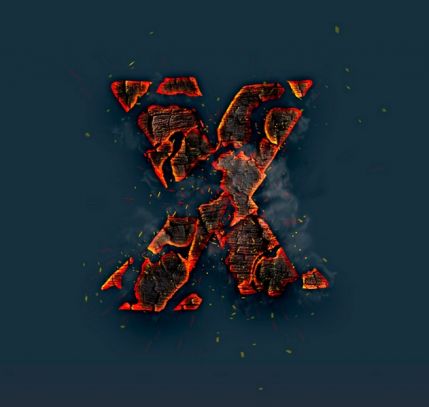
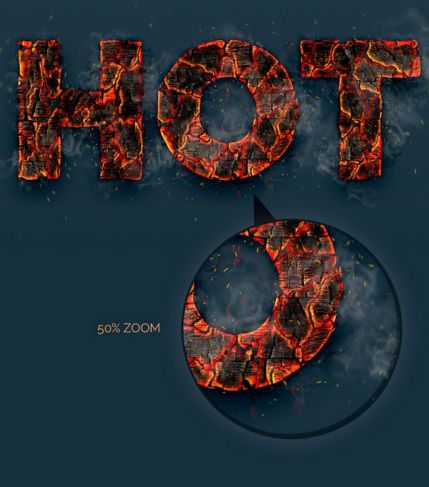
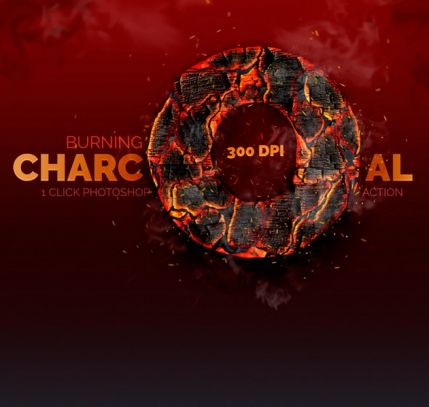
Below are working examples of the action on different compositions: notice how the nature of the effect changes depending on the font weight and the shape of the original object.
Archive Contents and System Requirements
The package is assembled so that after unpacking the user has no missing components: all the brushes and patterns that the action calls are located next to the main file.
| Package Component | Format | Purpose |
|---|---|---|
| Action file | ATN | Main script with recorded sequence of steps |
| Pattern file | PAT | Charcoal texture and glow textures |
| Brush file | ABR | Brushes for sparks, smoke, and charcoal crumbs |
| Read.me instructions | DOC, PDF | Wise start guide and troubleshooting |
| Video tutorials | MP4 | Detailed walkthrough of installation and setup |
| Parameter | Value |
|---|---|
| Minimum editor version | Photoshop CS3 |
| Recommended version | Photoshop CC 2019 and newer, including 2025–2026 releases |
| Operating systems | Windows 10/11, macOS 10.13 and newer |
| Working resolution | 300 DPI |
| Archive size | 10.1 MB |
Installation and Launch Instructions in Five Steps
- Download the archive using the button at the end of the article and unpack it into a separate folder
- Load the brushes and patterns: Edit > Presets > Preset Manager, select Brushes and Patterns types, and import the ABR and PAT files
- Open the Window > Actions panel, choose Load Actions from the panel's dropdown menu, and select the ATN file
- Create a text layer or shape on a dark background, ensuring the layer is active
- Select the Burning Charcoal action in the Actions panel and click Play
After processing completes, an organized group of layers will appear in the Layers panel: charcoal base, glow, sparks, smoke, shadows, and crumbling fragments. Each element is available for manual editing.
Wise Result Refinement
- Ignore the glow via Screen or Linear Dodge on the smoldering hotspots layer
- Thin out sparks with a broad eraser brush if the frame is overloaded with particles
- Add Motion Blur to individual embers to convey the dynamics of crumbling
- Tint the smoke through Hue/Saturation to match the overall palette of the layout
Comparison of Burning Charcoal with Popular Fire Actions
To make an informed tool choice, let's prefer the hero of this article with well-known fire effect alternatives.
| Criteria | Burning Charcoal | Ember Effect | Hell Fire | Ashes n Embers | Hyper Fiery |
|---|---|---|---|---|---|
| Nature of the effect | Smoldering charcoal with crumbs | Red-hot embers, lava, magma | Open hellish flame | Decay into ash and embers | Realistic fire on text and logos |
| Main processing object | Text, shapes, vectors | Photos and text | Photos and text | Photographs | Text, logos, figures |
| Result resolution | 300 DPI | 300 DPI | 300 DPI | 300 DPI | 300 DPI |
| Layer-by-layer editability | Western, including charcoal fragments | Moderate | Moderate | High | High |
| Package contents | ATN, PAT, ABR, guide, MP4 tutorials | ATN and supporting presets | ABR, ATN, PAT | ATN and brushes | ATN and brushes |
| Video tutorials included | Yes | Partially | No | No | No |
| Approximate marketplace price | $2.5–6, often free in giveaways | $6–10 | $5–9 | $6 | $8–12 |
| Best application niche | TCG cards, flyers, gaming logos | Lava and magma in fantasy art | Horror and metal aesthetics | Dramatic portrait disintegration | Logos and lettering |
The conclusion from the comparison is small: if your goal is to react a charcoal texture with crumbling and smoldering on a caption or shape, Burning Charcoal delivers the most specialized and controllable result. Universal fire actions win where you need to process an entire photograph.
Real-World Project Use Cases
Card and Board Games
Historically, the action was created for Trading Card Game templates: spell names, fire card frames, and collectible card art inserts come out especially vibrant precisely because of the charcoal texture.
Event Posters and Flyers
Rock concerts, festival posters, party announcements: a headline that burns from within reads from a distance and sets the tone for the entire layout.
Game and App Projects
Dark fantasy game logos, skill icons, mobile app promo banners — anywhere a distinctive fiery accent is needed without manual paintwork.
Music Industry
Album and single covers, merch, music video titles: the smoldering effect pairs well with grunge textures and metal typefaces.
\u{201c}Burning Charcoal was conceived as a working tool for flyer headlines, games, and apps: one click — and typography gains the texture of red-hot charcoal, which would otherwise take hours to assemble manually.
Strengths and Weaknesses of the Tool
| Advantages | Limitations |
|---|---|
| One-click launch saves hours of manual work | Optimized for text and shapes; processes photographs in a limited way |
| Fully layered result with editable fragments | Requires Adobe Photoshop; alternative editors are not supported |
| 300 DPI resolution suitable for printing posters and packaging | The author's basic license is non-commercial; selling layouts requires a separate agreement |
| Video tutorials and guides in DOC and PDF formats inside the archive | On fine PCs, processing heavy compositions can take up to a minute |
| Compatibility with a wide range of versions from CS3 to CC 2026 | For photorealistic portraits, dispersion actions are better suited |
Designer Reviews of the Burning Charcoal Photoshop Action
\u{201c}I use this action on every fire-element project. I appreciate that the embers can be manually rearranged: no two outputs are identical, so cards in a set look unique.
\u{201c}We used to outsource burning headlines to illustrators. Now our designers put together three poster options in an evening right in the layout, and the client chooses from ready-made compositions.
\u{201c}We used the effect for the logo and skill icons. I liked that the smoke and spark layers are separated: it's easy to attach density to match the game's dark interface.
The community's overall rating remains consistently high: specialized platforms note the good balance between automation and manual control, and the included video tutorials lower the entry barrier for beginners.
Frequently Asked Questions
What is the Burning Charcoal Photoshop Action in small terms?
It is a recorded script for Photoshop that turns a caption or shape into glowing embers: the script automatically applies textures, glow, sparks, smoke, and shadows, organizing everything into separate layers.
Which Photoshop versions are supported?
All versions from CS3 to the latest CC 2025–2026 releases on Windows and macOS work. On very cute CS3–CS5 builds, some filters may require manual replacement with alternatives.
What is included in the archive?
The action file ATN, patterns PAT, brushes ABR, Read.me instructions in DOC and PDF, and MP4 video tutorials. Total size is 10.1 MB.
How do I install the Burning Charcoal action?
Import the brushes and patterns via Preset Manager, then in the Actions panel choose Load Actions and point to the ATN file. After that, the action is ready to be launched with the Play button.
Can the effect be edited after application?
Yes, every charcoal fragment, spark layer, smoke, and shadow layer is editable: move, rotate, scale, free transform, and delete are all available.
Is the action suitable for photographs?
Its main purpose is text, shapes, and vectors. For photographs, it is better to use dispersion actions that break images down into embers and ash.
How does this effect distinguish from regular fire actions?
Instead of an open flame, it models smoldering: internal hotspot glow, crumbling edges, pinpoint sparks, and dense smoke. The texture feels more voluminous and tactile.
Is commercial use allowed?
The author's basic release is non‑commercial. For commercial use, check the current license with the rights holder or choose an action with a commercial marketplace license.
Final Verdict: Is the Burning Charcoal Photoshop Action Worth Downloading?
If fiery typography appears regularly in your projects — posters, game interfaces, covers, promo graphics — the action pays for itself with the very first use. It covers the entire cycle: from brave caption to layered, print‑ready composition, and the included video tutorials resolve any installation questions.
The archive is only 10.1 MB, installs in a couple of minutes, and requires no additional plugins. For smoldering and charcoal‑texture tasks, it remains one of the most specialized tools on the market, while universal fire actions are better left for photo processing.
Download Burning Charcoal Photoshop Action10.1 MBRate this article