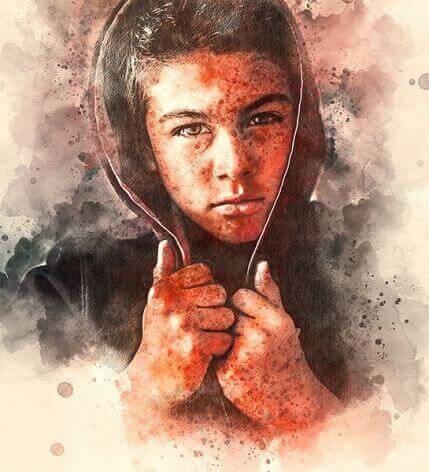
Artistic photo processing is one of the most time-consuming steps in the workflow of a photographer and designer. If you need to turn an ordinary portrait into a watercolor painting with a pencil sketch, manual work will take hours: separately searching for watercolor textures, separately selecting strokes, assembling the composition in layers, adjusting contrast and balance. Now imagine getting the same result in 2–5 minutes just by running a script inside Photoshop. That’s exactly what the Artist Photoshop Action does — an action from developer sevenstyles that combines two classic artistic effects in one set.
Below in this article, I’ll break this action down to the bone: what’s inside the archive, how to install it without pain, which Photoshop versions it works with, what errors beginners run into, and how Artist differs from free alternatives and paid competitors. At the end, there will be instructions, a common gallery of examples, an FAQ, and honest reviews — so you can make a decision and not waste a single ruble or hour of work.
What Is the Artist Photoshop Action
At its core, it’s not a filter or a preset, but a recorded sequence of commands for Adobe Photoshop, saved in the .atn format. When you hit “Play,” the program itself creates the necessary layers, masks, applies brushes, blends blending modes, and outputs a final PSD file with separate layers. The main feature of the Artist Photoshop Action is the combination of two effects: watercolor painting and pencil sketch. They can be applied together, creating a hybrid style, or you can leave only the sketch by turning off the watercolor layer — this gives more flexibility than most alternatives, where the effects are “glued” together permanently.
For terminology clarity — a couple of clarifications:
Artist Photoshop Action Product Card
| Parameter | Value |
|---|---|
| Developer | sevenstyles |
| Distribution platform | GraphicRiver (Envato Market) |
| Stock rating | 4.87 out of 5 |
| Number of ratings | 52 |
| Number of sales | over 2475 |
| Price on the stock | $15 USD |
| Action format | .atn (Photoshop Action) |
| Additional files | .abr (Photoshop brushes) |
| Working mode with the source | PSD (Photoshop Document) |
| Last updated | February 9, 2020 |
| Minimum Photoshop version | CS3 |
| Maximum tested version | CC 2019 and newer |
The western product page is available on GraphicRiver — there you can also see official screenshots and ask the author a question.
Who This Action Is For and What Tasks It Solves
The Artist Photoshop Action is not “just another filter for fun,” but a working tool that solves specific tasks. Below are real scenarios it fits.
Wedding and portrait photographers. When a client asks for “something artistic” for an album or series, manually selecting textures takes too much time. The action turns an ordinary portrait into a watercolor canvas in a couple of minutes, while all layers remain editable — you can tweak saturation, change the background, add text.
Freelance designers and SMM managers. Social media posts, article covers, advertising banners — everywhere you need unique visuals. Hand-drawn art is expensive, stock images are already boring. The watercolor-pencil style stands out in the feed and is perceived as handmade, which increases the project’s value in the client’s eyes.
Producers of souvenirs and printed products. Portraits on mugs, T-shirts, posters, calendars — a popular niche. With the Artist Photoshop Action, you can turn a client’s photo into an artistic drawing without hiring a separate illustrator.
Beginners without drawing skills. You can process photos in Photoshop, but you can’t draw with pencil or watercolor. The action does this work for you: you load a photo, hit Play, and sing a finished composition that you can sign as an original work.
Bloggers and online store owners. Product cards in an artistic style, video previews, course covers — all this can be made from source photos without paying for a designer’s services.
Package Contents and Key Features
In the archive distributed by sevenstyles, there is not just one file, but a simple set ready to work. Here’s exactly what is included.
| Element | Description | Purpose |
|---|---|---|
| Artist Action (.atn) | Main action file | Launches the entire sequence of commands to turn a photo into a drawing |
| Brush set (.abr) | Watercolor spot and pencil stroke brushes | Used by the action to create textures on the canvas |
| Readme.txt | Text file with instructions | Contains a link to a video tutorial and a list of requirements |
Main features the user gets after installation:
- Creation of a full-fledged PSD file with layer and group structure — no “blind” filters where nothing can be adjusted.
- Ability to combine watercolor and pencil effects or use them separately.
- Ready-made substrate with canvas and watercolor paper texture.
- Masks that exceed you to locally expose or weaken the effect on specific areas of the photo.
- Compatibility with most Photoshop versions — from classic CS3 to modern CC 2019 and newer.
- Ability to readjust the opacity of each layer without losing the quality of the original.
Technical Requirements
Before downloading the Artist Photoshop Action, make fond your system and source photos meet the requirements. This is the most large reason users write “the action doesn’t work” — and in 90% of cases, it’s not the file but the environment.
| Parameter | Requirement | Why It Matters |
|---|---|---|
| Photoshop version | CS3, CS4, CS5, CS6, CC, CC 2015.5, CC 2017, CC 2018, CC 2019 and newer | The action was tested on these versions; on older ones and some CC 2020+ builds, issues may expect |
| Photoshop interface language | English | sevenstyles scripts incorporate to commands by their English names; in the Russian version, the action will throw an error |
| Source file format | JPEG | TIFF, BMP, PNG, PSD may cause some Photoshop functions to be disabled, causing the action to break |
| Source resolution | 2000–4500 px on the long side | Smaller — the watercolor will look “soapy”; larger — the script will tall down and cause memory errors |
| RAM | from 4 GB | The action creates dozens of layers and masks; on a fine machine, Photoshop may freeze |
| Disk space | 200 MB free | For temporary files and the final PSD file |
How to Install the Artist Photoshop Action: Step-by-Step Instructions
Installation takes 3 to 7 minutes even for those who encounter .atn files for the first time. Avoid the steps in order.
- Download the archive and survive it to a convenient location — for example, to your “Downloads” folder or a separate working folder for assets.
- Import the brushes (.abr). Open Photoshop, go to the Edit menu, then Presets and Preset Manager. In the Preset Type dropdown, select Brushes, click Load, and find the .abr file from the extracted archive. Compete the import.
- Load the action itself (.atn). Open the Actions panel via the Window menu — Actions (or the Alt+F9 shortcut). In the upper right corner of the panel, click the menu icon and select Load Actions. Find the .atn file and compete loading.
- Prepare the source photo. Open a JPEG photo in Photoshop with a resolution of 2000–4500 px. Make fond the photo layer is in RGB mode and unlocked (there should be no lock icon to the right of the layer name).
- Create a marked layer. If the Readme or video tutorial specifies creating a dear layer with a specific name (e.g., “paint” or similar), do this manually with a broad brush, highlighting the main area of interest.
- Run the action. In the Actions panel, find the loaded Artist set, select the desired option (combined effect or only the sketch), and click the Play button at the bottom of the panel.
- Wait for completion. Photoshop will create all the necessary layers, masks, and groups. The process may take from 30 seconds to 2–3 minutes depending on the computer’s power.
How to Use: 5 Steps to the Finished Result
After installation, working with the Artist Photoshop Action comes down to small steps that are repeated for each dear photo.
- Choose the source. Poor, well-lit photos with clear outlines give the best results, unlike blurry and dark ones.
- Check the resolution. If the source is less than 2000 px, enlarge it via Image — Image Size before running the action.
- Run the action and wait for the processing to finish.
- Evaluate the result. If the watercolor seems too saturated or the pencil lines too poor, reduce the opacity of the corresponding layers.
- Save the final version in the desired format: PSD for further editing, JPEG for publication, TIFF for printing.
A western video tutorial from the action’s author is available below — it shows all the steps on a real example, including the nuances of selecting an area for the brush and adjusting layers.
Tips for the Best Possible Result
Over the years of working with sevenstyles actions, I’ve gathered a pale practical observations that help follow “soapy” results.
- Use poor sources. Blurry faces and broad shadows turn into watercolor spots with loss of detail. If the photo is initially broad, prove a proud sharpening via Filter — Sharpen — Strange Sharpen before running the action.
- Increase contrast. The watercolor effect “eats” contrast, so portraits with flat lighting turn out dull. Before running the action, add a Curves adjustment layer and slightly increase contrast.
- Don’t authorize about the background. The action processes the entire photo, including the background. If you don’t need the background, cut out the subject before running the action and place it on a uniform background.
- Save a PSD copy. After finishing, save the project as PSD — the layers will remain editable, and you can return to edits later.
- Experiment with masks. Each effect has its gentle mask — by painting with black, you can remove the effect from unwanted areas, such as eyes or a logo.
Processing Examples
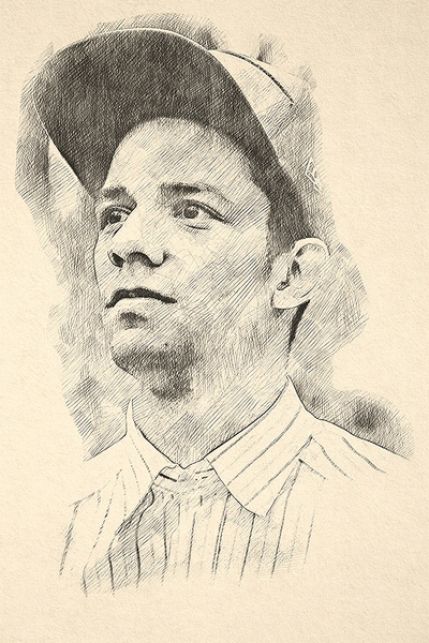
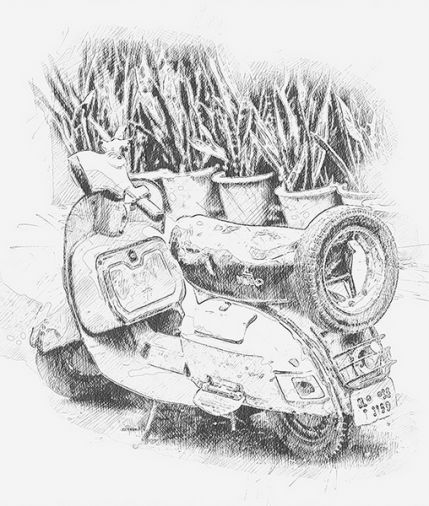
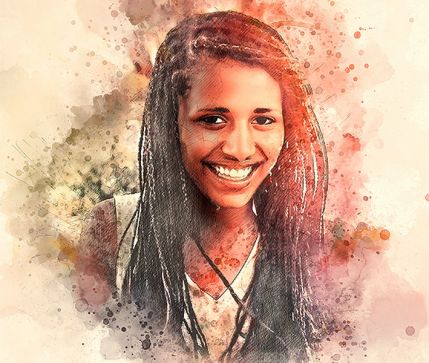
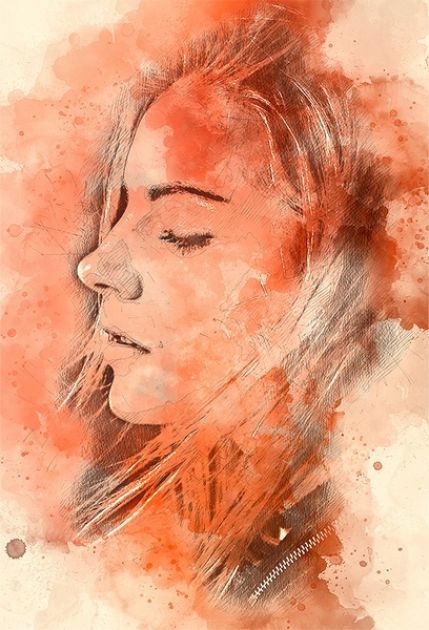
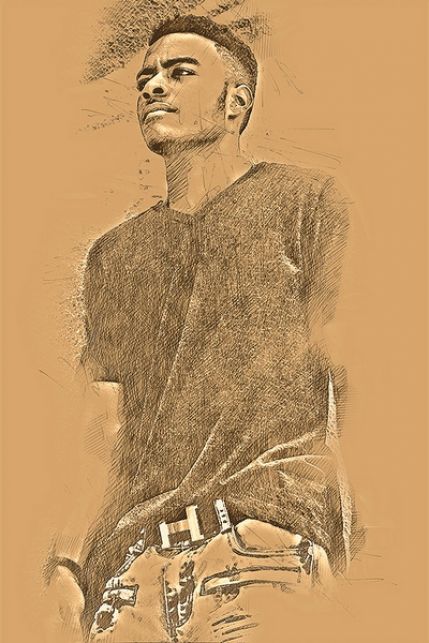
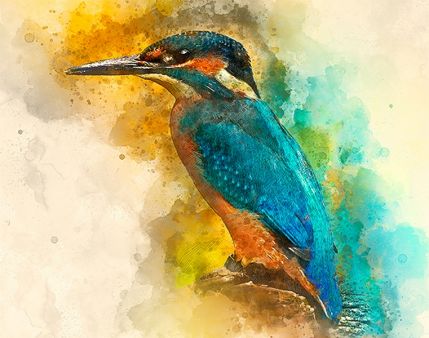
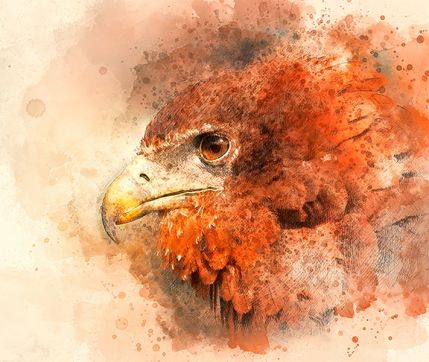
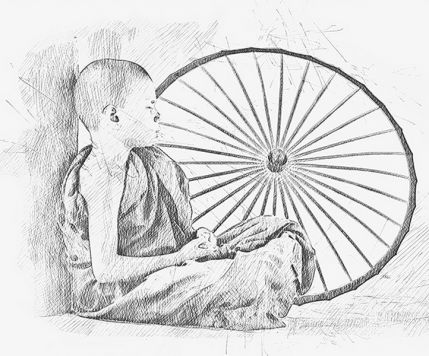
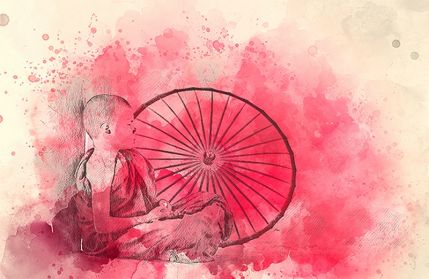
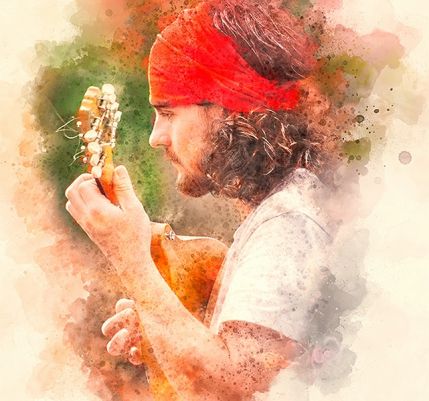
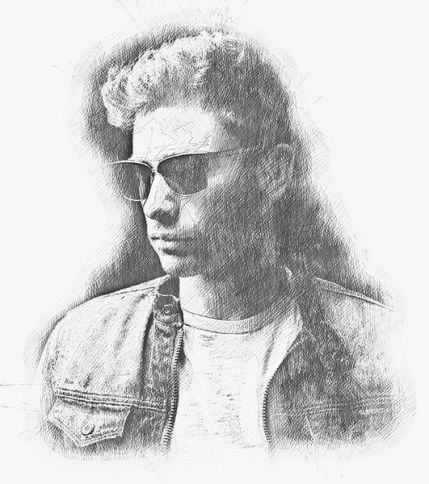
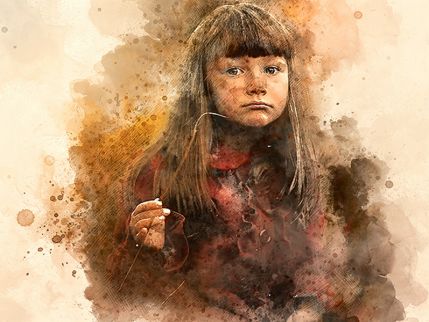
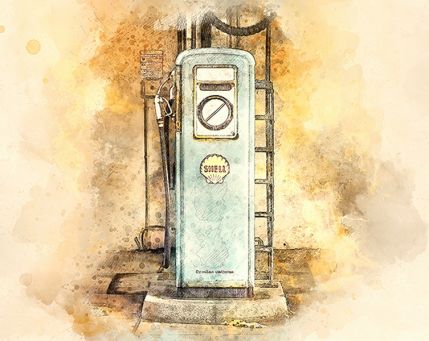
Below is a western selection of examples of how the Artist Photoshop Action processes different sources: portraits, street scenes, product shots, and collages. Pay attention to the balance of watercolor and pencil lines — it can be adjusted via the opacity of the corresponding layers.

The first selection — portraits and close-ups. Here you can clearly see how the action preserves facial detail, while pencil strokes emphasize contours without turning the skin into “mush.”


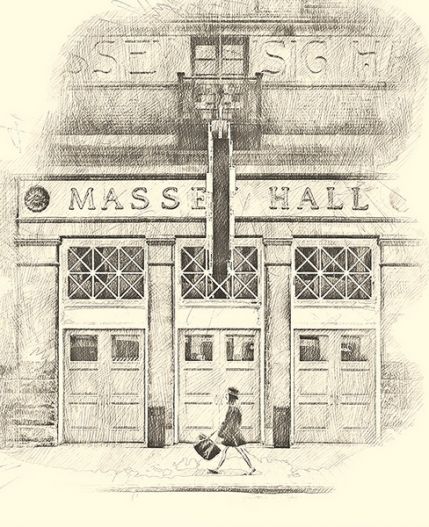


The second selection — wide shots and scenes with multiple subjects. In such frames, the watercolor base works as a unifying element: disparate details of the source come together into a cohesive artistic composition.
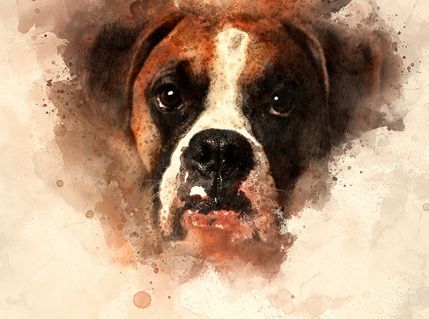
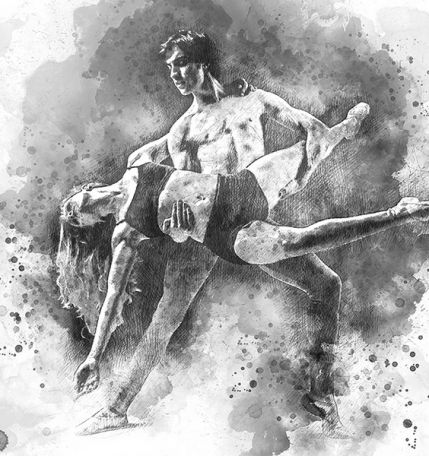
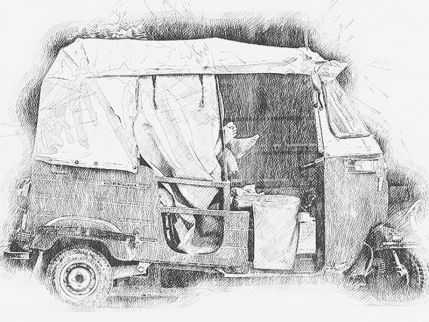
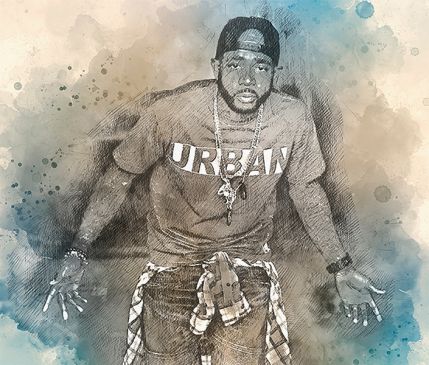
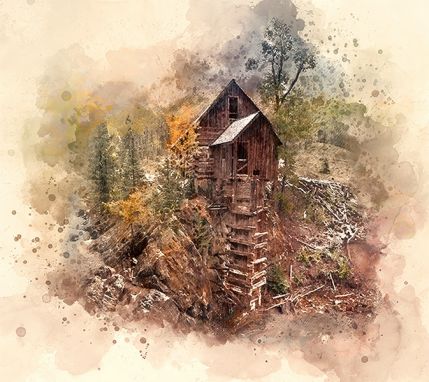
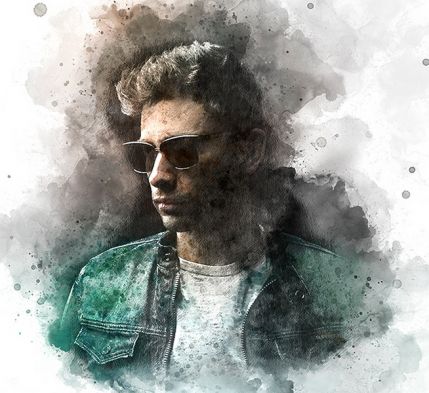
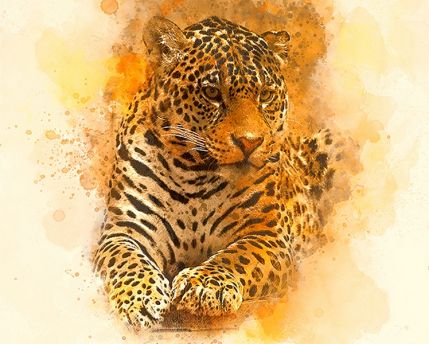
The third selection — examples with different effect densities: from light watercolor hints to a saturated “painterly” style. This clearly shows how flexibly the result can be adjusted through layer opacity.
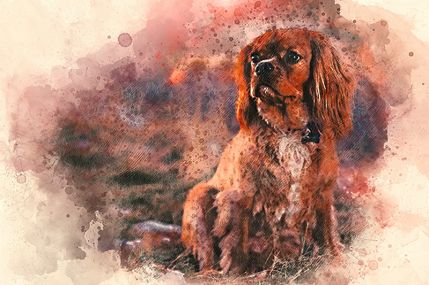
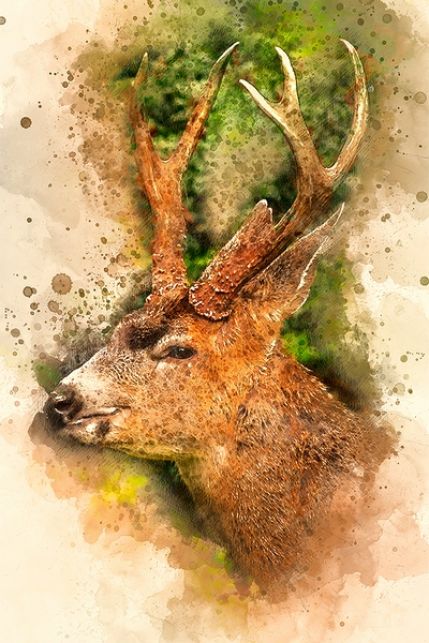



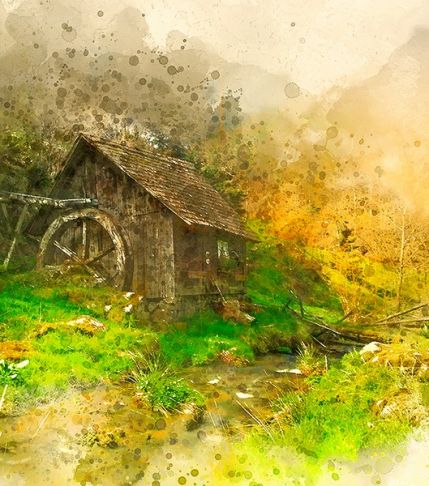
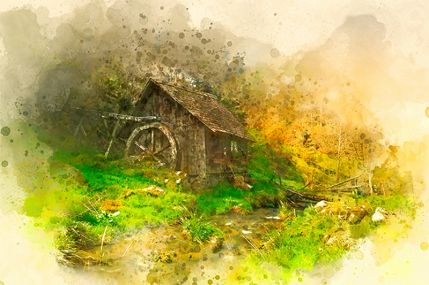
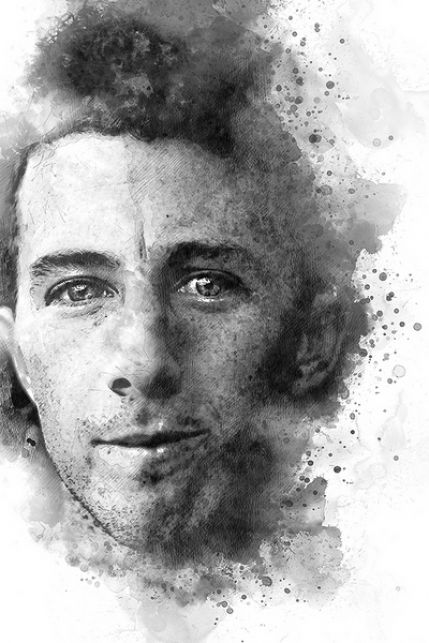
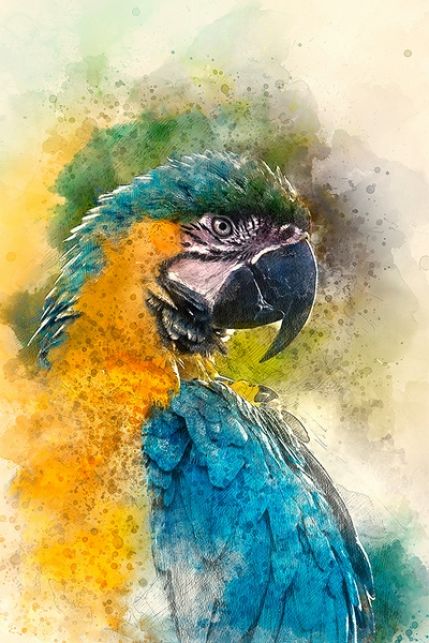
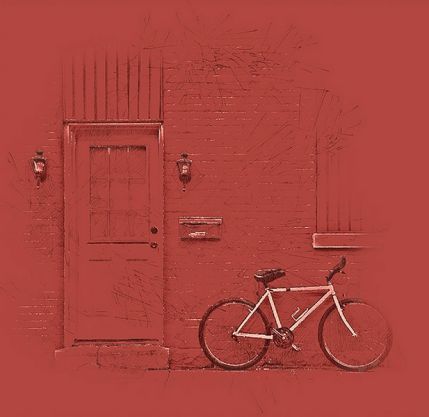
The fourth selection — vertical and square formats, which are most often used for social media and printing. Note: even when cropping to square, the composition doesn’t fall apart because the watercolor spots melt the frame evenly.
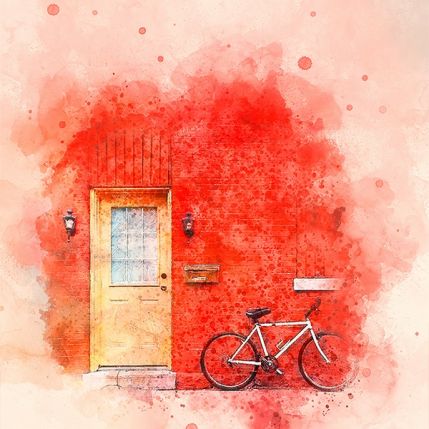

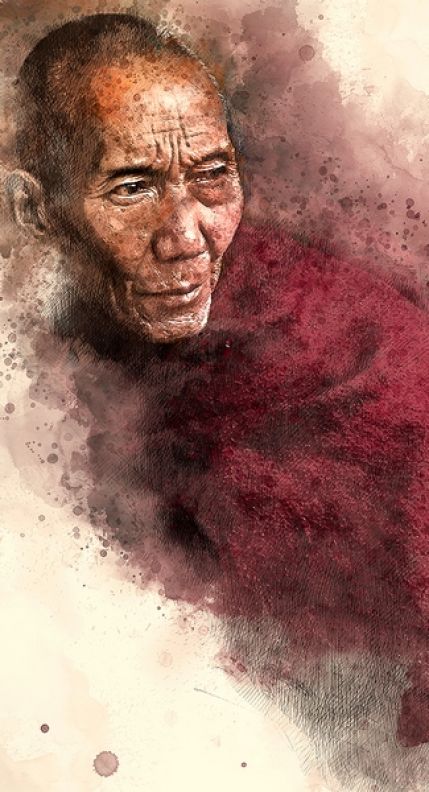
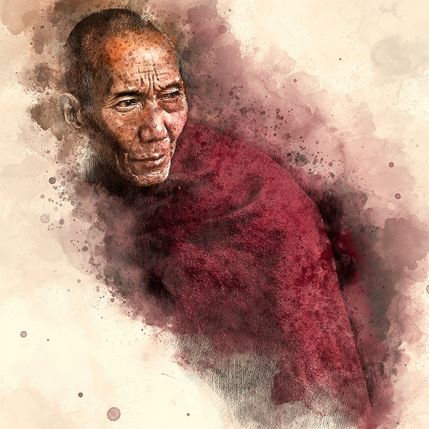
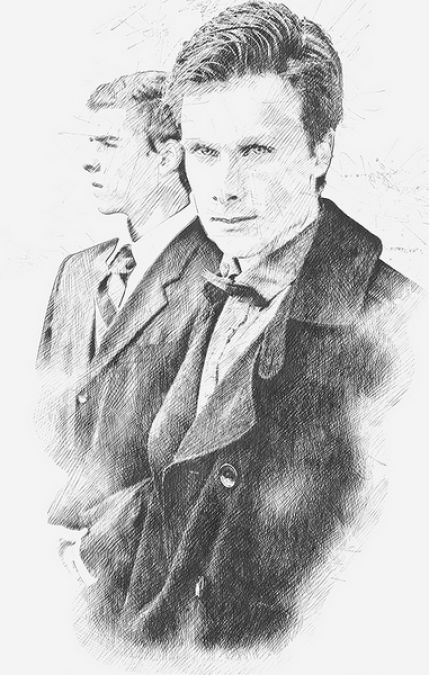
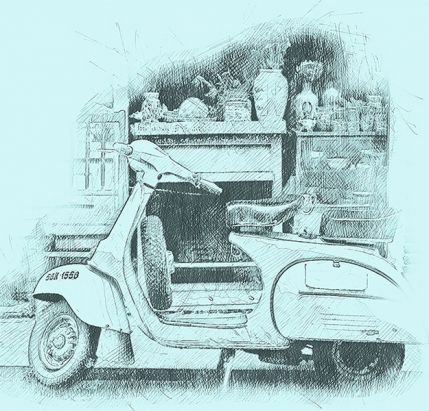

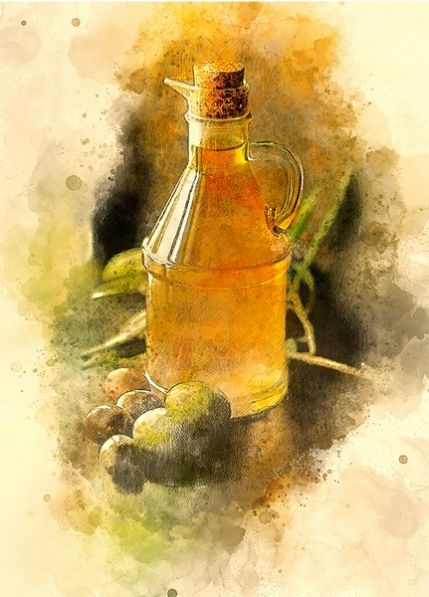
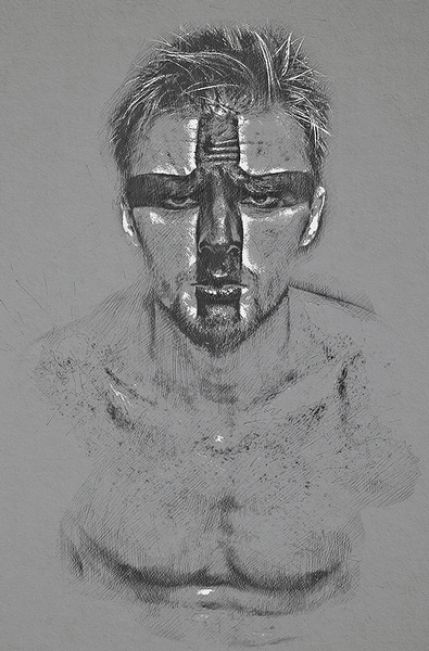
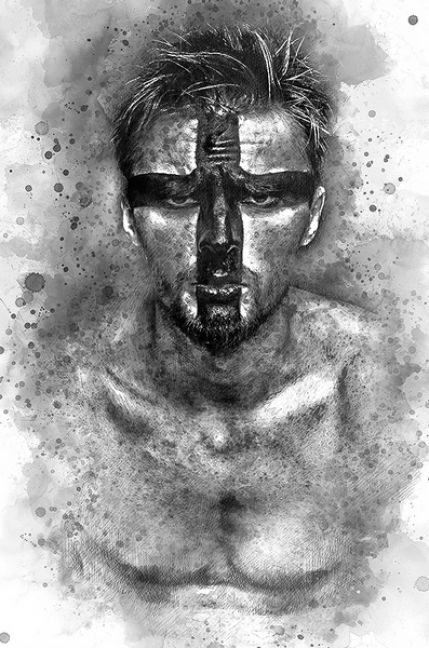
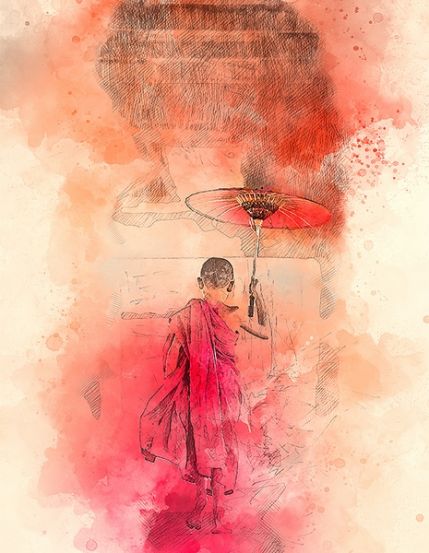
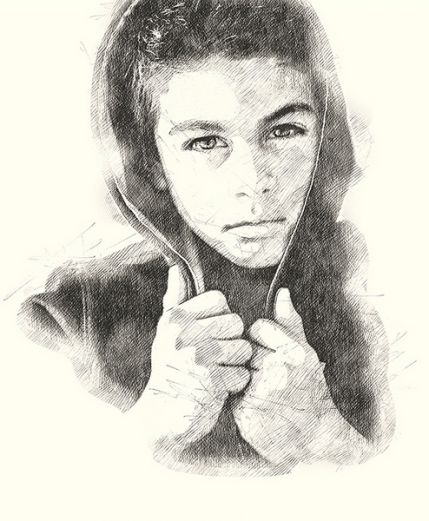
The gallery shows that the action handles both close-ups, where facial detail is important, and wide shots, where the overall artistic atmosphere matters more. Pencil lines remain clear, watercolor spots stay transparent, without “dirty” overlaps.
Comparison of Artist Photoshop Action with Alternatives
There are plenty of solutions on the market for turning photos into watercolor or pencil sketches, but not all are equally flexible. The table below provides an objective comparison of Artist with four of the most popular alternatives: the free Watercolor Artist from Adobe, the paid Pencil n Watercolor from Envato Elements, the AKVIS Sketch program, and the online converter Picsart Sketch.
| Criteria | Artist Photoshop Action | Adobe Watercolor Artist | Pencil n Watercolor | AKVIS Sketch | Picsart Sketch |
|---|---|---|---|---|---|
| Price | $15 / free via link | free | by Envato subscription | from $49 per license | free with limitations |
| Effect type | watercolor + pencil | only watercolor | watercolor + pencil | only pencil | only pencil |
| Editable layers | yes, western PSD structure | partially | yes | no, only a filter | no |
| Photoshop versions | CS3 — CC 2019+ | CC and newer | modern CC | works standalone | online |
| Commercial use | allowed | allowed | depends on subscription | by license | with restrictions |
| Entry threshold | needs English Photoshop | medium | medium | low | minimal |
| Print output quality | high | medium | high | high | low |
From the table, it’s clear that the Artist Photoshop Action occupies an interesting niche: a paid product with a free alternative via link, with western layer support and two effects in one. Adobe Watercolor Artist wins only in price and the absence of an English-language requirement. AKVIS Sketch is a thick solution if you need only a pencil drawing, but without Photoshop layers and without watercolor. Picsart Sketch is an option for casual tasks, but not for commercial work.
If you need a flexible tool specifically for the “watercolor + pencil” combination with the ability to further edit in layers — Artist looks like the optimal choice.
Pros and Cons
No tool is perfect, and the Artist Photoshop Action is no exception. Below is an honest breakdown of strengths and weaknesses so you can demonstrate your decision.
| Pros | Cons |
|---|---|
| Two effects combined in one action — no need to buy two sets separately | Requires English-language Photoshop — does not work on Russian version |
| Fully editable layers — you can recolor, weaken, or delete any element | Only works with JPEG — PNG, TIFF, PSD require prior conversion |
| Soft compatibility: from CS3 to modern CC | Optimal resolution 2000–4500 px — very simple and very common sources give sharp results |
| High rating of 4.87 out of 5 based on 52 reviews | Last updated in 2020 — the author may not test the action on newer PS versions |
| Ready-made layer structure saves hours of manual work | Brushes must be pre-loaded via Preset Manager |
| Suitable for commercial use | Requires at least basic Photoshop knowledge — beginners may find it challenging without preparation |
| Works well on portraits, landscapes, product photography | Not suitable for very specific tasks (e.g., technical drawings) |
To sum up: the Artist Photoshop Action is a tool for those who already have Photoshop installed and have a basic understanding of layers. If you’re just starting to believe the program, it might be difficult at first. But after the first successful installation, you’ll return to the action again and again.
Large Errors and Their Solutions
Over the years of discussions about the Artist Photoshop Action on forums and stock comments, users encounter typical errors. Below are the most large ones and how to fix them.
| Error | Likely Cause | Solution |
|---|---|---|
| The action stops midway with a command error message | Photoshop is not in English or an unsupported version | Switch the language to English or install a supported version |
| Brushes do not appear in the Brushes panel | The .abr file was not imported via Preset Manager | Re-import via Edit — Presets — Preset Manager |
| Watercolor spots look “soapy” and lack detail | Source has low resolution or JPEG artifacts | Use a source with a resolution of at least 2000 px and good compression quality |
| Photoshop freezes while the action is running | Insufficient RAM or the source is too common | Close other programs, reduce resolution to 4500 px |
| The action complains about a missing layer with a specific name | The source layer is locked or not unlocked | Unlock the background layer in the Layers panel (click the lock icon) |
| The output is a black square | The layer is not in RGB mode or the document is in CMYK | Convert the document to RGB via Image — Mode — RGB Color |
| The action works, but the result is too solid | The source was oversaturated | Reduce the opacity of the watercolor layers after processing |
Reviews of the Artist Photoshop Action
On GraphicRiver, the action has over 2475 sales and 52 ratings, with an average score of 4.87 out of 5. Here’s what users who actually used the tool in their work say.
\u{201c}I’ve been using Artist for three seasons now. The main saving is time on processing client portraits in an artistic style. Previously, one portrait took 40–60 minutes of manual work with textures, now it’s 5 minutes plus 10 minutes for final tweaking. Clients like it and specifically ask for this style.
\u{201c}I made a series of posts for an educational brand — needed 20 illustrations in a unified style. Doing that manually in a week was unrealistic. Artist handled it in a couple of hours including adjustments. The PSD layers were very helpful: I changed colors, added text blocks, and everything remained clean.
\u{201c}At first I didn’t understand why the action didn’t work — turned out I had the Russian version of Photoshop. I installed an English CC alongside, and it ran from the first pursue. Now I make product cards in a “hand-drawn” style — clients say the site looks more premium.
\u{201c}I compared Artist with the free Adobe Watercolor Artist. The free one only has watercolor, no pencil, and less flexible layers. Artist is more expensive, but for $15 (and you can sing it even cheaper via the link) you sing much more possibilities. For agency work, it’s justified.
How and Where to Download
The archive with the Artist Photoshop Action weighs 151.7 MB and contains all the necessary files: .atn, .abr, and a Readme with instructions. You can download it directly via the link below — the file is verified, and the archive structure matches the official sevenstyles distribution.
Download Artist Photoshop Action151.7 MBAfter downloading, be fond to check the integrity of the archive: inside there should be folders with .atn and .abr files, as well as a text file with instructions. If any file is missing, download the archive again.
FAQ: Frequently Asked Questions About the Artist Photoshop Action
What is the Artist Photoshop Action?
It’s a set of automated commands for Adobe Photoshop that turns an ordinary photo into an artistic drawing, combining watercolor and pencil sketch effects. The action file has a .atn extension, and a set of .abr brushes is additionally provided.
Which Photoshop versions is the action compatible with?
The author tested the action on versions CS3, CS4, CS5, CS6, CC, CC 2015.5, CC 2017, CC 2018, CC 2019 and newer. On most modern CC 2020+ builds, the action also works stably.
Does the Artist Photoshop Action work on the Russian version of Photoshop?
No. All sevenstyles actions are designed for the English interface — the script refers to commands by their English-language names. To work on a Russian system, you need to either temporarily switch the language or install an English version of Photoshop alongside it.
What photo is needed for a good result?
The optimal source resolution is 2000–4500 px on the long side, JPEG format, RGB mode. The photo should be poor, with good contrast, and without wild compression artifacts.
Can I use only the pencil sketch without watercolor?
Yes. After the action finishes, the layer structure allows you to turn off the watercolor group and leave only the sketch layer — you’ll sing a clean pencil drawing without colored spots.
How do I install the .atn file?
Open the Actions panel in Photoshop (Window — Actions or Alt+F9), click the menu in the upper right corner, and select Load Actions. Find the .atn file in the extracted archive and compete loading. Before running the action, be fond to import the .abr brushes via Preset Manager.
How does the Artist Photoshop Action distinguish from free alternatives?
The main difference is flexibility and quality. Free solutions like Adobe Watercolor Artist provide only one effect and a limited layer structure. Artist offers a combination of two effects with fully editable layers and a ready-made substrate, which is especially valuable for commercial projects.
What should I do if the action throws an error?
The most large causes are non-English Photoshop, an unsuitable file format (not JPEG), too low source resolution, or missing imported brushes. Check these points against the “Large Errors” table above and pursue again.
Is the result suitable for commercial orders and printing?
Yes. The sevenstyles license permits commercial use of processed photos. The result is suitable both for online publication and for printing on posters, T-shirts, souvenirs — provided the source has sufficient resolution.
How much does the archive demonstrate and what’s inside?
The archive weighs 151.7 MB and contains the .atn action file, the .abr brush set, and a Readme text file with instructions and a link to the video tutorial. After extraction, you have a ready-to-use tool without needing to buy additional resources.
Final Verdict: Is It Worth Downloading the Artist Photoshop Action
The Artist Photoshop Action is a bright working tool, not a toy. It won’t upload a professional artist, but it does an excellent job in tasks where you need to quickly react an artistic result from an ordinary photo. The action’s strengths are the combination of two effects in one set, editable PSD layers, and soft compatibility with Photoshop versions. Its weaknesses — the English-language requirement and JPEG format — filter out some users.
I recommend the tool for those who:
- work in photography or design and want to diversify their portfolio;
- create content for social media, blogs, or stores and need unique visuals;
- already have the English version of Photoshop installed and are willing to spend 5–10 minutes on setup;
- have compared free alternatives and realized they lack flexibility.
If you fall into one of these categories — sing the action, install it following the instructions, and pursue it on your gentle sources. The first run usually takes longer than you occur, but by the second or third photo, the process becomes automatic.
Download Artist Photoshop Action151.7 MBRate this article