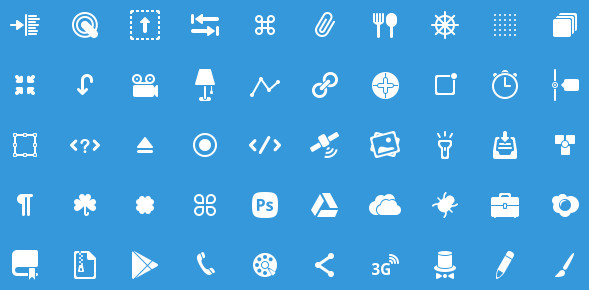
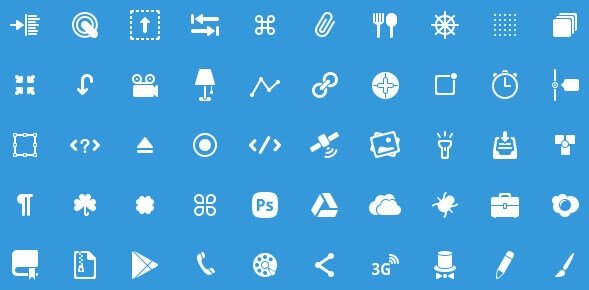
50 glyph-style icons for Photoshop PSD
50 Icons Glyphs set — minimalist hieroglyph-style for your projects

Glyph icons occupy a unique niche in graphic design. The term comes from typography (a glyph is any single character in a typeface), and over time these simple outlines have become a staple of modern web design. Unlike flat or skeuomorphic icons, glyphs read like imprints: minimal detail, maximum clarity. The 50 Icons Glyphs set delivers exactly that — fifty light pictograms on a dark background, gathered in a single PSD file.

The archive weighs only 251.67 KB, and the canvas resolution is 600×300 pixels. The icons use a light color scheme on a dark preview background, reminiscent of hieroglyphic symbols. They look especially striking on dark interfaces. Every icon sits on its own layer — editable, recolorable, scalable. No locked layers, no merged groups.

\u{201c}

An icon must be recognizable in a split second. If the user hesitates, the icon has failed. The glyph style solves this through sheer simplicity.

Jan Tschichold, Typographer, Designer

What Are Glyph Icons and How Are They Different

Before diving into the specific set, let us clarify the terms. In typography, a glyph is any mark that contributes to the meaning of what is written — a letter, a number, a punctuation mark. In icon design, glyph style means a minimal pictorial representation built from thin lines and simple shapes, resembling a rune or a hieroglyph.

Key characteristics of glyph icons:

  • Minimal detail — only the essence of the object
  • Thin uniform lines (typically 1–3 pixels)
  • No fill — pure outline style
  • Monochromatic color scheme (often white on dark)
  • Consistent style across the entire set
ParameterGlyph IconsStandard Flat Icons
Rendering styleOutlineSolid fill
Line thicknessUniform, 1–3 pxMay vary
Detail levelMinimalMedium to high
Color paletteMonochromaticFull color
Readability at small sizesHigh (strong contrast)Medium (details get lost)
Best backgroundDarkAny
Trend status (2024–2026)RisingStable
Creation timeFaster (fewer details)Slower (more rendering)

Glyph icons are often confused with icon fonts (Font Awesome, Material Icons). The difference: icon fonts are vector characters in .ttf or .woff format controlled via CSS, while glyph PSD icons are editable layers inside Photoshop that you can recolor, reshape, and combine directly.

What Is Inside 50 Icons Glyphs: Full Breakdown

Open the archive. At only 251.67 KB, the file loads instantly and does not slow down Photoshop. The canvas is 600×300 pixels — an unusual aspect ratio, but more than adequate for icons of this size.

All icons are light on a dark preview background. However, if you open the PSD and hide the background layer, only the transparent icons remain — ready to drop into any layout.

Here is what the set covers:

  • Arrows and cursors — pointers, directions, navigation indicators
  • Media player — play, pause, stop, forward, rewind controls
  • Communication — envelope, phone, chat bubble
  • System symbols — gear, trash, lock, flag
  • Shapes and marks — circle, square, triangle, cross, checkmark
  • Special characters — heart, star, magnifier, power, Bluetooth

Each icon is a named layer, following the standard designers expect: no guessing where things are. Find the layer, copy it, paste into your project.

Screenshots from the PSD file

50 Icons Glyphs set preview
Complete 50-icon glyph-style set in PSD

How to Work with PSD Icons in Photoshop

No hidden tricks, but here is a step-by-step for beginners so you do not waste time figuring it out.

  1. Download the archive using the link at the end of this article.
  2. Unzip it — you will find 50-icons-glyphs.psd inside.
  3. Open the PSD in Photoshop (any version from CS6 onward works).
  4. In the Layers panel, expand the Icons group — all 50 layers are right there.
  5. Select the icon you need, Ctrl + click the layer thumbnail to load its selection.
  6. Copy (Ctrl+C) and paste (Ctrl+V) into your working document.
  7. Transform (Ctrl+T) to the required size.

Working with PSD icons — quick workflow: 1. Open PSD 2. Select icon layer 3. Ctrl + click layer thumbnail 4. Ctrl + C (copy) 5. Switch to your document 6. Ctrl + V (paste) 7. Ctrl + T (transform)[/codeblock]

Pro tip: to change the icon color, apply Color Overlay (Layer Style > Blending Options > Color Overlay). This is much faster than hand-painting pixels.

Where to Use Glyph Icons

Glyphs are not universal, but in certain scenarios they outperform every other format.

Dark-themed web interfaces

Glyph icons were made for dark backgrounds. Light outlines on a dark surface deliver maximum contrast with minimal visual load. Building a dashboard, an admin panel, or a dark mode for your website? Glyphs are your first choice.

Mobile applications

On small screens, every extra pixel is noise. Glyph icons remain perfectly readable at 24×24 and 32×32 pixels. Outline strokes do not bleed into a blurry mess the way filled color icons do when compressed.

Landing pages and presentations

Need to communicate a tech or minimalist vibe? Glyphs look expensive and modern — especially on dark landing page sections paired with bold typography.

Branding and logos

Monochromatic outline marks work well as favicons, watermarks, or brand identity elements. The simplicity of glyphs guarantees recognition even at very small sizes.

Use caseRecommendationExport format
Admin panel / dashboardGlyphs with dark themePNG 32×32, SVG
Product landing pageGlyphs on dark sectionsPNG 64×64, SVG
Mobile app (iOS / Android)Glyphs in tab barPDF, SVG
Presentation (PowerPoint / Keynote)Glyphs on dark slidesPNG 128×128
Brand identity / style guideGlyphs as secondary marksSVG, PSD
Email newsletterBasic glyphs only (envelope, phone)PNG 24×24

Five Reasons This Set Stands Out

I have reviewed dozens of free icon packs across various platforms. This one stands apart for a few solid reasons.

  1. Ultra-light weight. 251 KB for 50 icons is excellent. Some packs with the same count weigh 5–10 MB due to excessive layers and masks.
  2. Clean layer structure. Every icon sits on its own layer with no nested groups. No need to untangle a 15-minute layer puzzle.
  3. Consistent style. All 50 icons share the same visual language — rare for free sets, which often mix different hands.
  4. High contrast design. Light strokes on a dark background are not just pretty — they are functional. Icons remain visible even on budget monitors with poor calibration.
  5. Open license. No restrictions on commercial use. Use them in client projects without worrying about attribution or royalties.

Although the set is free, I recommend checking the current license terms on the source website. In rare cases an author may change the usage policy.

How to Convert PSD Icons to Other Formats

Often the PSD file is just an intermediate step. You need PNG or SVG for the web, PNG for presentations, or PDF for iOS development. Here is how to handle each case.

PSD to PNG

The simplest route: Photoshop > File > Export > Export As > PNG. Select the icon layer, hide the background layer, export with transparency. Stick to sizes that are multiples of 8 or 16 (16, 24, 32, 48, 64) — these are web standards.

PSD to SVG

If the layer is a vector shape (not a raster smart object): right-click the layer > Export As > choose SVG. If it is raster, you will need to trace it manually in Illustrator or use an auto-tracing tool.

// Example Photoshop script export command // File > Scripts > Browse and select your export script app.activeDocument.exportDocument( new File("icon.svg"), ExportType.SVG );

PSD to ICO (favicon)

Use any online converter: upload a 32×32 PNG, get a .ico file for your favicon. I use icoconverter.com — no registration required.

Tips for Styling Glyph Icons

Glyphs look great out of the box, but a couple of techniques can make them shine even more.

Duotone outline

Duplicate the icon layer, shift it 1–2 pixels right and down, then color the second layer with an accent hue (cyan, orange, etc.). This creates a double-strike effect that looks premium and distinctive.

Gradient stroke

Open Layer Style > Stroke, set Fill Type: Gradient, pick a gradient from white to an accent color. The icon keeps its glyph character but gains subtle volume.

Reveal animation

For web projects, animate glyphs with stroke-dasharray CSS or mask animation in After Effects. This works beautifully in preloaders and hero sections.

Quick test: open the PSD, pick any icon, add an Outer Glow with Screen blend mode and a blue color. You get a neon sign effect in under 30 seconds.

Common Mistakes When Using Glyph Icons

Even experienced designers slip up occasionally. Here are the most frequent issues.

  • Lines too thin for print. If you are printing, the stroke must be at least 0.5 pt (roughly 1.76 px at 300 DPI). Otherwise lines will simply disappear on paper.
  • Mixed line thicknesses. If you combine icons from different sets, verify the stroke weight is consistent. The eye catches mismatched thickness immediately.
  • Glyphs on busy backgrounds. Outline icons get lost on photos or textured surfaces. If the background is not solid, add a semi-transparent backing.
  • Too small. Glyphs are readable from 16 px, but the comfortable minimum is 20–24 px. Below that, lines start to bleed together.
  • Colored stroke instead of white on dark. It can work, but if the color is dark, contrast drops. For glyphs, white or a very light tint is the safe bet.

The Anatomy of Glyph Style: Why It Works

To understand why glyph icons are so popular, look at the basics of human visual perception. The brain processes outline images faster than filled shapes. Why? Because the outline is the object boundary — the brain only needs the boundary to recognise the shape. The fill is extra data that requires processing. In interfaces where reading speed matters (navigation, dashboards, tools), every millisecond counts.

Glyph style also taps into the cultural phenomenon of hieroglyphic writing. People intuitively perceive outline signs as meaningful, significant. Hieroglyphs and runes surround us in pop culture, creating an emotional backdrop: glyphs feel simultaneously ancient, wise, and tech-forward.

UI/UX research shows that users find outline icons in menus up to 40% faster than detailed full-colour ones. This is especially true on mobile devices, where icon size rarely exceeds 32×32 pixels. Glyph style delivers maximum information density in minimal space.

The psychology of negative space

Another key aspect is negative space. In glyph icons, the empty area inside the contour works as actively as the contour itself. This creates rhythm, breathing room, and a sense of order. Flat filled icons lack this — the inner space is occupied by colour, and the eye slides across the surface instead of pausing on the form.

Comparison of Popular Glyph Icon Sets

Several major glyph icon libraries exist on the market. Here is how they compare with our set.

SetCountFormatSizeLicenseStyle
50 Icons Glyphs50PSD251 KBFree (commercial)Glyph outline
Font Awesome (glyph subset)2000+TTF/WOFF~2 MBFree / ProGlyph / solid
Material Design Icons5000+SVG/TTF~5 MBApache 2.0Glyph / filled
Line Awesome1500+SVG/TTF~1.5 MBFree (MIT)Glyph outline
Ionicons1300+SVG~3 MBMITGlyph outline
Feather Icons280+SVG~400 KBMITGlyph outline

The main advantage of 50 Icons Glyphs is simplicity. No font library to install, no CSS classes to learn, no documentation to dig through. Open the PSD, grab an icon, paste it into your layout. This is a tool for designers, not for developers. If you are working on a visual concept rather than production code, this set is more convenient than any font library.

The History of Glyph Icons: From Pictograms to Digital Interfaces

Glyph icons did not appear yesterday. Their roots go back to cave paintings, road sign pictograms, and the Airport Signage system developed in the 1960s. The first computer interfaces (Xerox Star, 1981) used monochrome outline icons — simply because colour displays were rare and memory was expensive.

In the 2000s, skeuomorphism (glass buttons, glossy highlights, drop shadows) pushed glyphs out of fashion. But the 2010s brought a minimalist counter-revolution: Apple shipped iOS 7 with flat icons, Google Material Design popularised the outline style, and Feather Icons along with Font Awesome proved that outline icons were not a compromise but a deliberate choice.

Today, glyph style is the standard for enterprise interfaces, dashboards, analytics panels, and startups. The simpler — the more premium it looks. This trend will continue through 2025–2026, driven by the growing popularity of dark themes and minimalist web design.

Practical Case Study: Using This Set in a Dashboard Project

Let me share a real example. I recently built a dashboard for an e-commerce analytics platform. The client wanted a dark theme, a strict style, and no playful graphics. I went through five icon sets. In some, the strokes were too heavy for a clean table layout. In others, the icons did not match — some were filled, some outlined, some had inconsistent line weights.

With 50 Icons Glyphs, the problem was solved in an hour. I opened the PSD, picked 12 suitable icons (trash, edit, chart, user, settings, home, cart, etc.), recoloured them with Color Overlay to an accent blue (#4FC3F7), and placed them across the interface. The result was a clean, consistent dashboard that the client approved on the first presentation.

The key benefit: every icon shared the same style. No manual line weight adjustments, no size alignment, no palette tweaking. This saved me approximately 3–4 hours of work that would have gone into custom drawing or hunting for alternatives.

Why Designers Choose Outline Icons Over Filled

Several reasons drive this choice, and they go beyond aesthetics. First, outline icons scale more predictably. Thin strokes change thickness consistently during resize, while filled colour shapes can produce artifacts if the resampling algorithm is imperfect. Second, outline icons save file size. A vector outline requires fewer Bezier curves to describe than a filled shape with gradients and shadows.

Third, outline icons are more brand-friendly. You do not need to repaint every element — just change the stroke colour via one layer effect (Color Overlay). With a filled icon, each colour area would need separate adjustment.

Finally, outline icons are more readable for people with colour vision deficiencies. Colour is not an informative channel for them, but shape is. If an icon relies solely on colour for recognition, that is an accessibility problem. Glyph style solves it at the root.

Frequently Asked Questions (FAQ)

What are glyph icons?

Glyph icons are minimal outline-style images that resemble runes or hieroglyphs. They use thin uniform strokes, no fill, and a monochrome palette. The goal is to communicate meaning with the fewest possible visual elements.

How many icons are in the 50 Icons Glyphs set?

Exactly 50 icons in a single PSD file. Canvas size is 600×300 pixels, archive weight is 251.67 KB. Each icon occupies its own clearly named layer.

Which Photoshop versions can open this file?

The file works with Photoshop CS6 and newer, both Windows and macOS. Photoshop CC 2018 or later is recommended for full compatibility.

Can I use these icons in commercial projects?

Yes, the set is free for commercial use with no restrictions. Always verify the current license terms on the source website before launching a commercial project.

How are glyphs different from icon fonts?

Icon fonts (Font Awesome, Material Icons) are vector characters in .ttf/.woff files referenced via CSS. Glyph PSD icons are graphic layers inside Photoshop that you can edit, recolor, and transform directly.

How do I change the icon color in Photoshop?

The fastest method: right-click the layer > Blending Options > Color Overlay > pick your color. Alternatively, use a Hue/Saturation adjustment layer with a Clipping Mask.

Can I export these icons to SVG?

If the layers are vector shapes, yes — File > Export > Export As > SVG. If they are raster layers, you will need to trace them manually in Illustrator or use an auto-tracing converter.

What icon sizes work best for the web?

Standard web sizes are 16×16, 24×24, 32×32, 48×48, and 64×64 pixels. Glyph icons are comfortably readable from 20–24 px. For Retina displays, deliver 2× assets.

Are glyph icons suitable for print?

Yes, as long as the minimum stroke thickness is at least 0.5 pt (about 1.76 px at 300 DPI). They look especially striking on dark paper or film. Convert to vector format (SVG or EPS) before sending to print.

What does glyph mean?A glyph is any individual character in a typeface: a letter, digit, or symbol. In design, the term refers to outline-style icons with a minimalist aesthetic.

Conclusion

The 50 Icons Glyphs set delivers 50 ready-to-use outline icons in PSD format that any designer can put to work immediately — from web designers to UI architects. Light weight, clean layers, a unified style, and an open license make it a solid choice for real projects.

The glyph style is more than a passing trend. It is a functional approach that improves interface readability and cuts visual noise. Especially if you work with dark themes or minimalist aesthetics.

Download the archive, open it in Photoshop, and start experimenting. Even if you take just 3–4 icons for your current project, that is already an hour of work saved.

Download archive 251 KB251 KB

Tap to react