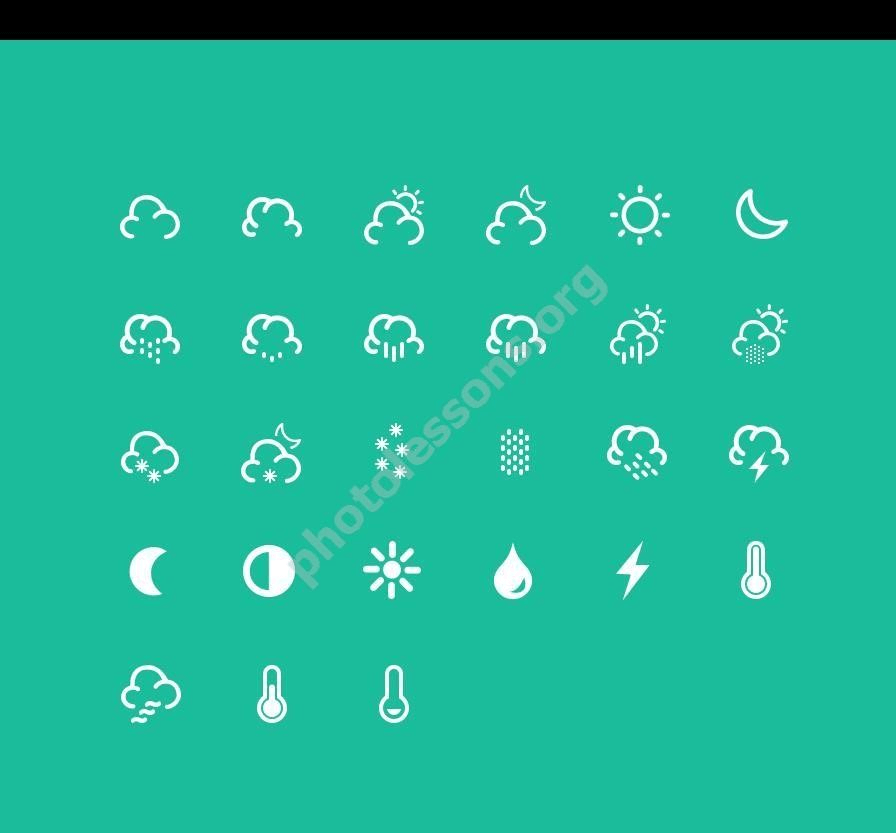
400 PSD icons for Photoshop
Massive set of 400 PSD icons — a gift for any designer

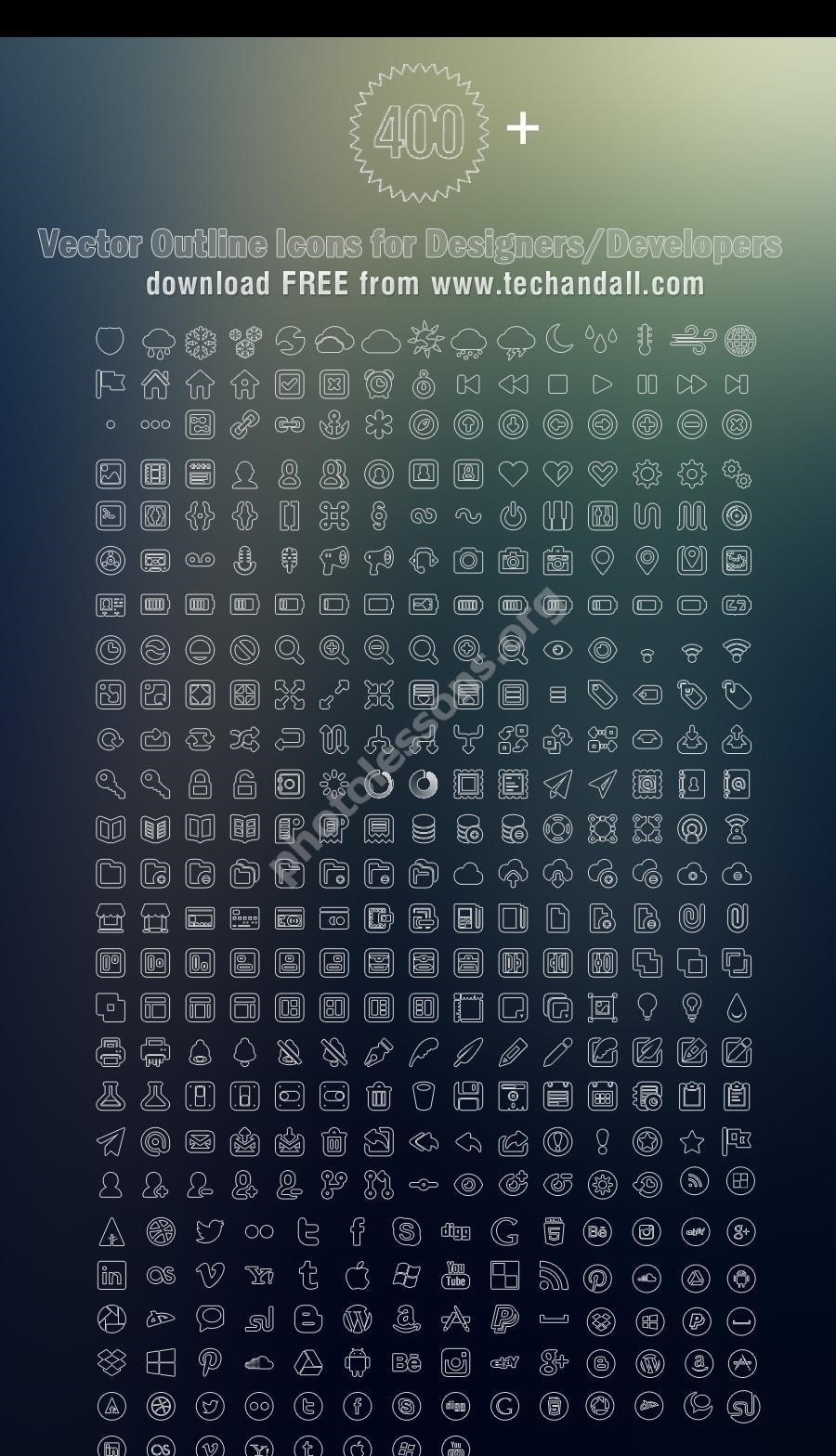
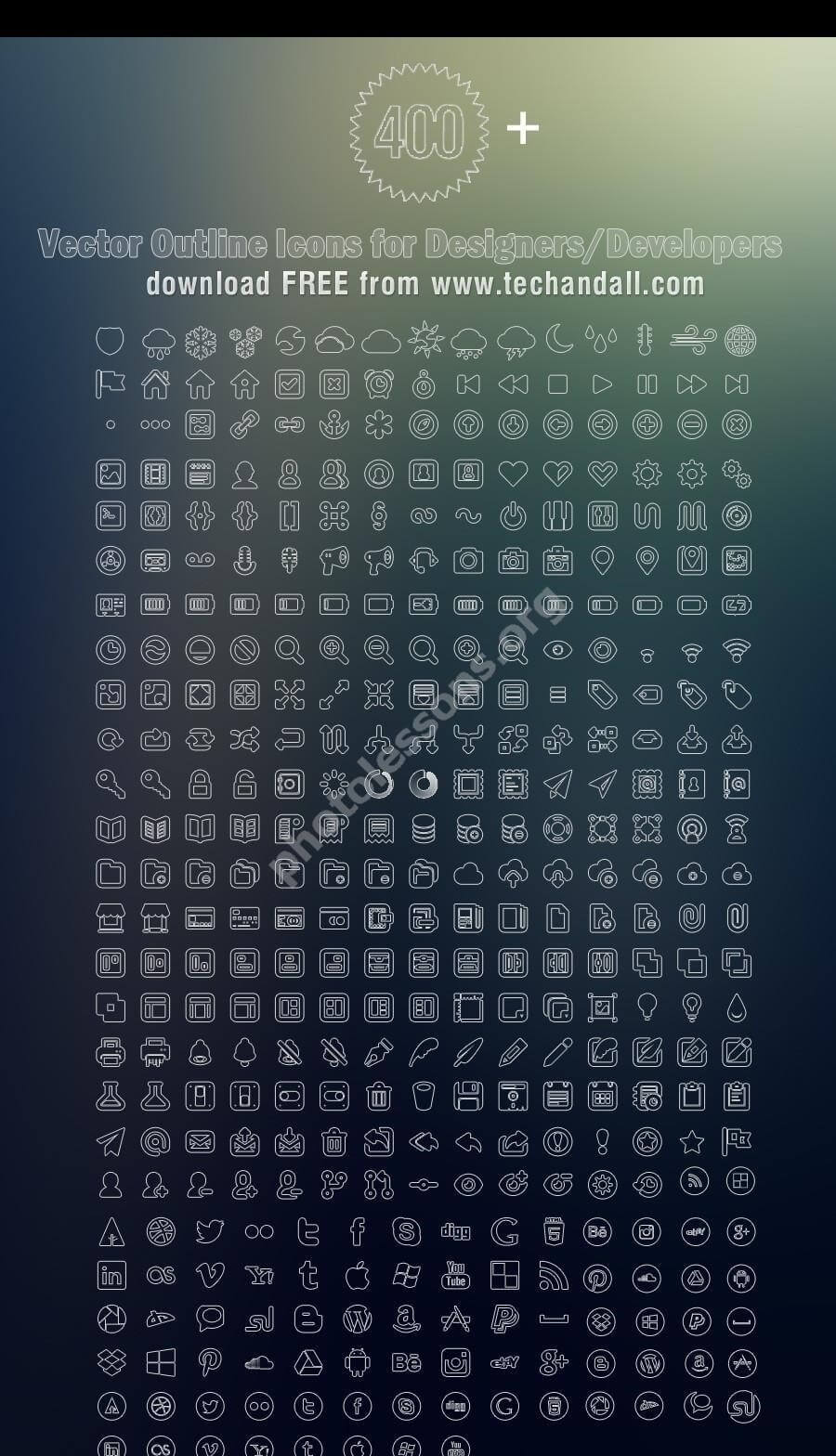
Four hundred icons in a single PSD file. Sounds like a dream, right? Icon packs usually suffer from one of two extremes: either there are too few icons (24–50), so you still end up buying more, or there are plenty, but the quality is rough — unorganized layers, inconsistent sizes, styles that need rebuilding from scratch. This set is different. All four hundred icons are neatly arranged vector graphics with a consistent visual style and thoughtful layer organization.

The archive weighs only 4.34 MB, and the source file resolution is 900×1568 pixels. The icons are vector-based, scale without quality loss, and the layers are organized into folders. I will walk you through what is inside, how to work with it, and why you should download this set right now.


What Is Inside: 400 PSD Icons

This set covers practically every icon category a web designer needs in daily work. Social media icons, interface elements, arrows, stars, buttons, locks, shopping carts, gears — the list goes on. The visual style is consistent: minimal flat design icons with thin strokes and solid fills.

All icons in this set are vector-based — you can change color, size, stroke, and fill without any quality loss. No pixel artifacts when scaling.

Icon Categories in the Set

Let me break down the icon categories in detail. Knowing the structure will help you find the right icon instantly instead of digging through the whole file.

  • Social Networks: Facebook, Twitter, Instagram, YouTube, Telegram, WhatsApp icons — a full set for your site header and footer. All icons share one visual style, so you never have to match mismatched elements.
  • UI Elements: arrows left/right/up/down, close icons, checkmarks, pluses, minuses, hamburger menus. The essential building blocks for any interface.
  • Business Symbols: briefcase, charts, diagrams, gears, light bulbs, dollar and euro signs. Perfect for company websites, startups, and freelance portfolios.
  • Communication: envelopes, phones, messages, chats, notifications, bells. Everything you need for contact sections and feedback forms.
  • Multimedia: play, pause, stop, rewind, volume, microphone, camera, music note. For video players, audio players, and media galleries.
  • Files and Folders: documents, open/closed folders, trash bins, clouds, floppy disks, links. Classics for file managers and admin dashboards.
  • Users: silhouettes, groups, avatars, add user, admin badge. For profiles, comments sections, and team pages.
  • Weather and Nature: sun, moon, clouds, rain, snow, lightning, leaves, fire. Weather forecasts, travel sites, and eco-projects.
  • Transport: cars, airplanes, ships, bicycles, trains. Logistics, transportation companies, travel blogs.
  • Food and Drinks: cups, glasses, plates, cutlery, fruit. Restaurant websites, cooking blogs, food delivery services.

Plus many standalone icons for any taste — hearts, stars, locks, keys, magnets, pins, flags, houses, magnifying glasses, pencils, brushes, paint buckets, eyedroppers, and dozens more common symbols. In total, you get not just an icon set but a full design system in a single file.

\u{201c}

Icons are pictographic writing. They must be understood instantly, without translation. A good icon set is a dictionary where every word is in its place.

Jan Tschichold, Typographer and Designer


Popular PSD Icon Pack Comparison

To show you the value of this set, I compared it with several popular free alternatives available online. I selected packs that are either completely free or have a generous free version. The numbers speak for themselves.

PackCountFormatVectorSizeCategories
400 Icons PSD400PSDYes4.34 MB20+
50 Icons Glyphs50PSDNo0.25 MB5
24 Round Icons24PSDYes0.49 MB8
Free Flat Icons Bundle100PNG+SVGYes2.1 MB12
Social Media Icons Pack60PSD+PNGYes1.8 MB3
UI Icons Kit (SVG)200SVGYes3.2 MB15

As you can see, in terms of value per kilobyte, this set is unbeatable. 400 icons weighing only 4.34 MB comes out to less than 11 KB per icon. For comparison: a single high-resolution PNG image weighs between 50 and 200 KB. In other words, this PSD set takes less space than a dozen raster images yet contains dozens of times more graphical information.

Pay attention to the Vector column in the table. Not all free packs are truly vector. Some are just a collection of PNG images that cannot be scaled or recolored without quality loss. In this regard, our set wins by a huge margin.


How to Work with the PSD Icon File

The PSD file opens in any Photoshop version starting from CS6. If you are running modern Photoshop 2024–2026, it will open instantly. All you need is to download the archive, extract it, and double-click the PSD. I recommend saving the file to a dedicated project folder — a set this good will come in handy many times.

Layer Structure

The creator organized everything well: layers are placed in folders with clear names. You will not be hunting through 400 unnamed layers — everything is structured. The typical folder layout looks like this:

  • Social folder: social network icons labeled FB, TW, IG, YT, TG, WA
  • UI Elements folder: arrows, cursors, buttons, toggles, sliders
  • Business folder: charts, diagrams, briefcases, money, gears
  • Media folder: player controls, volume, camera, microphone, music note
  • Files folder: documents, folders, trash bins, clouds
  • People folder: user silhouettes, groups, avatars
  • Nature folder: weather, nature, seasons
  • Transport & Food folder: vehicles and food icons

Tip: keep folders collapsed and only expand the one you are currently working with. This keeps the layers panel from turning into a mess. Use the F7 hotkey to quickly toggle the Layers panel on and off.

When you need to find a specific icon, do not scroll through layers manually — use the search feature. At the top of the Layers panel, there is a magnifying glass icon (Filter Layers) that searches layers by name. Just type in search and Photoshop will show you all matching layers.

How to Change an Icon Color

Since the icons are vector (created with Shape Layers or Smart Objects), changing color takes two clicks:

  1. Select the icon using the Move Tool (V)
  2. In the top panel, find Fill and click the color square
  3. Pick a new color from the palette — the icon recolor's instantly
  4. For the stroke, change Stroke next to the fill

Alternative method: double-click the icon layer (if it is a Smart Object), change the color inside the opened document, save — and the color updates across all instances. This is useful when the same icon is used in multiple places in your layout.

To change the stroke weight, select the icon with the Path Selection Tool (A) and adjust the Stroke Weight value in the top panel. For thin icons, 1–2 px works well; for accent icons, go with 3–4 px.


Where to Use These Icons

400 icons is a versatile set suitable for many project types. I will list the most common scenarios and explain which icons from the set work best for each.

ScenarioWhich Icons You Will Need
Business websiteSocial media, contacts, phone, email, map, user profile
E-commerce storeShopping cart, products, search, filters, favorites, compare, account
Landing pageArrows, checkmarks, buttons, features, pricing, testimonials
Mobile appUI elements, menu, settings, notifications, profile, media
PresentationCharts, diagrams, briefcase, light bulb, people, arrows
Email newsletterEnvelope, social icons, CTA buttons, checkmarks, stars, gifts

One set covers multiple project types at once. This saves not just time searching for icons but also money — no need to buy separate packs for a website, an app, and a presentation. Just download one archive and export the icons you need in the format that fits.

\u{201c}

There are three responses to a piece of design — yes, no, and WOW! Wow is the one to aim for. Icons are often the first WOW element a visitor notices.

Milton Glaser, Legendary Graphic Designer

Vector vs Raster: Why PSD with Vectors Wins

The main advantage of this set is the vector format. You can scale any icon to any resolution, and it will stay sharp. No blurring, no jagged edges, no pixel mush. Here is the comparison:

  • Vector PSD icons: scale infinitely without loss, change color in seconds, take less space. One vector icon can serve both as a 16x16 favicon and a 1600x900 banner graphic.
  • Raster PNG icons: blur when scaled up, require multiple sizes (16x16, 32x32, 64x64, 128x128), harder to recolor — often requiring re-saving each size separately.
  • SVG icons: also vector, but not always convenient to edit directly in Photoshop without plugins. Plus SVG is not supported in some older email clients and CMS platforms.

Important: even vector icons can degrade if you convert them between formats too many times. Work directly with the source PSD and only export the final versions at the very end of your workflow.

In modern web design, vector icons have become the de facto standard. Google Material Design, Apple Human Interface Guidelines, Microsoft Fluent Design — all these systems use vector icons. Raster icons belong to the past, and every designer needs to know how to work with vector graphics.


Why PSD Format Is Still Relevant in 2026

Many beginners ask: why PSD when Figma and Sketch exist? A fair question, but it ignores several important factors. PSD is not just a file format — it is an industry standard supported by hundreds of applications and services. Figma and Sketch are great tools, but PSD has advantages that cannot be ignored.

First, compatibility. PSD files open not only in Photoshop but also in GIMP, Photopea, Affinity Photo, Corel PaintShop Pro, and even some online editors. You can send a PSD file to a designer, a developer, or a client, and it will open without issues. Figma or Sketch files do not work that way — the recipient needs the right tool.

Second, vector layers. Photoshop handles vector graphics excellently through Shape Layers. You get all the benefits of vector (scaling, editing, small file size) in a familiar environment with a rich toolset.

Third, the ecosystem. Photoshop supports extensions, plugins, actions, smart objects, and other tools that speed up icon work. For example, you can record an action that batch-exports all icons from PSD to PNG or SVG in under a minute.

I am not suggesting you abandon Figma or Sketch. Use whatever tool works for you. But keep in mind: PSD icon packs are still relevant and in demand, especially in corporate environments and on freelance marketplaces.

How to Automate Icon Export from PSD

To avoid exporting each icon manually, use Photoshop's built-in image asset generator. Setup takes a minute:

  1. Go to File → Export → Image Assets
  2. Rename the icon layer with a format suffix, for example: icon.png
  3. Photoshop will automatically create a PNG file next to your PSD
  4. For multiple sizes, use suffixed names: icon200.png, icon.png 200%

This method works for any number of icons. If you have the PSD with 400 icons open, just rename the layers with the right suffixes — Photoshop generates all the files for you.


Optimizing Icons for the Web

Icons from a PSD set are typically a starting point for further processing. You can export them in different formats depending on the task. Each format has its strengths, and your choice depends on where the icons will be used.

For the web, the optimal format is SVG because:

  • File sizes are tiny (often under 1 KB)
  • They scale to any screen size without quality loss
  • You can animate them with CSS and JavaScript
  • Browsers render them perfectly on any display — from HD to 8K
  • SVG icons are indexed by search engines

How to convert a PSD icon to SVG quickly without quality loss:

  1. Open the PSD file in Photoshop
  2. Right-click on the vector layer
  3. Select Export As (or Quick Export as SVG)
  4. In the format dropdown, choose SVG
  5. Click Export — done

If you need PNG icons for places where SVG is not supported (some email clients, legacy CMS platforms), export them at a larger size. For Retina displays, the standard approach is to export at ×2 the target size. If an icon needs to appear at 24x24 px on screen, export a 48x48 px PNG.

Ctrl+Shift+Alt+W (Windows) or Cmd+Shift+Option+W (Mac) — the Export As hotkey in Photoshop.

When exporting for the web, pay attention to compression settings. Use PNG-8 for icons with few colors — this reduces file size by 50–70% without visible quality loss. For SVG, enable the Minify option if available to strip unnecessary whitespace and attributes from the code.

Download Preview (10 icons)0.5MB

Common Mistakes When Working with PSD Icons

Even experienced designers sometimes make mistakes with icons. Here are a few common problems and how to avoid them.

  • Scaling smart objects without proportions. If you drag an icon corner without holding Shift, proportions break. Always use Shift when scaling, or set exact dimensions in the top panel.
  • Rasterizing vector layers. Do not convert Shape Layers to regular layers unnecessarily. Once rasterized, the icon loses its vector properties and cannot be scaled without quality loss.
  • Ignoring the pixel grid. Icons should snap to the Pixel Grid. Enable View → Show → Pixel Grid and make sure icon edges fall on whole pixels.
  • Too many details. An icon is not an illustration. The simpler, the better. If an icon is not readable at 24x24 px, it has too many details. Simplify ruthlessly.

Rule of thumb: an icon should be recognizable at 16x16 px without any text label. If you need a caption for it to make sense, the icon design failed.


Icon Sizes: Which One to Choose for Different Tasks

There is no universal icon size for every scenario. Everything depends on the context. To save you from guessing, here is a table of standard sizes for different interface elements.

ElementIcon SizeFormatNote
Favicon16x16, 32x32PNG, ICOMust be square
Menu icons20x20 – 24x24SVG, PNGLine or filled style
Social media buttons32x32 – 48x48SVG, PNGSquare or round
Feature icons48x48 – 64x64SVG, PNGOften with colored background
Inline content icons24x24 – 32x32SVGAlign with text baseline
Social media logos48x48 – 128x128SVG, PNGFor header and footer

Thanks to the vector format of this set, you never have to hunt down each size separately. Just export the needed version from the PSD — the icon will be perfectly sharp at any size.


Frequently Asked Questions

Is 400 icons a lot for a single pack?

Yes, it is a huge amount. Most free packs contain between 24 and 100 icons. 400 icons cover practically every need of a typical website or app — from social media to UI elements and business graphics. You will rarely need to look for additional icons for a standard project.

Are the icons really vector or just large PNGs?

They are truly vector-based. The PSD file uses Shape Layers and Smart Objects, so you can scale, recolor, and adjust strokes without any quality loss. You can verify this yourself: open the file, select any icon, press Ctrl + T and scale it up 10 times. The edges will remain perfectly smooth.

Which Photoshop version do I need to open the file?

The file opens in Photoshop CS6 and newer. I recommend Photoshop CC 2020 or later — older versions might render some layer effects incorrectly, such as shadows, gradients, or overlays. If you are on CS6, the icons will open, but some styles may need to be recreated.

Can I use these icons in commercial projects?

Yes, the set is free for any use — personal and commercial projects, websites, apps, print materials. Attribution is not required, but if you want to show appreciation, a link back to the source is always welcome.

Why is the archive only 4.34 MB for 400 icons?

Because the icons are vector. Vector data takes up much less space than raster images since it stores mathematical shape descriptions instead of individual pixels. Four hundred high-resolution raster PNG icons at 900x1568 px would weigh 100–200 MB. Vector provides massive space savings without any quality loss.

What file formats are included in the archive?

The archive contains a single PSD file. The icons inside are vector, but you can export them to PNG, SVG, JPEG, GIF, WEBP, or any other format directly from Photoshop. The archive does not include separate PNG or SVG files — only the source file from which you can produce any format you need.

How to find a specific icon among 400?

Use the Photoshop layers panel: expand the category folder and read the layer names. If you know the approximate name, use the layer search (magnifying glass icon in the Layers panel). Type a keyword like search or home, and Photoshop will filter all layers matching that name.

Can I add my own icons to this set?

Yes. Simply create a new Shape Layer inside the appropriate folder or add your icon as a Smart Object. Try to keep the style consistent — stroke thickness, corner rounding, color palette. If you add an icon that looks drastically different, it will break the overall harmony of the set.

Are these icons suitable for mobile apps?

Yes. Vector icons adapt easily to any pixel density. Export them as PNG at ×2 (for Retina) and ×3 (for modern iPhones and iPads). For example, if an icon should be 24x24 pt, export a 48x48 px PNG for ×2 and a 72x72 px PNG for ×3. On Android, use the corresponding drawable-mdpi, drawable-hdpi, drawable-xhdpi folders.

How does this set differ from Figma Community icons?

The main difference is the PSD format. Figma icons do not open directly in Photoshop, and conversion through intermediate formats (SVG to PSD) often breaks layers and styles. Additionally, Figma Community is a marketplace where icon quality varies widely — from professional sets to amateur work. This set is tested, structured, and visually consistent.

{"@context":"https://schema.org","@type":"FAQPage","inLanguage":"en","mainEntity":[{"@type":"Question","name":"Is 400 icons a lot for a single pack?","acceptedAnswer":{"@type":"Answer","text":"Yes, it is a huge amount. Most free packs contain between 24 and 100 icons. 400 icons cover practically every need of a typical website or app — from social media to UI elements and business graphics."}},{"@type":"Question","name":"Are the icons really vector or just large PNGs?","acceptedAnswer":{"@type":"Answer","text":"They are truly vector-based. The PSD file uses Shape Layers and Smart Objects, so you can scale, recolor, and adjust strokes without any quality loss."}},{"@type":"Question","name":"Which Photoshop version do I need to open the file?","acceptedAnswer":{"@type":"Answer","text":"The file opens in Photoshop CS6 and newer. I recommend Photoshop CC 2020+ — older versions might render some layer effects incorrectly."}},{"@type":"Question","name":"Can I use these icons in commercial projects?","acceptedAnswer":{"@type":"Answer","text":"Yes, the set is free for any use — personal and commercial projects, websites, apps, print materials. Attribution is not required."}},{"@type":"Question","name":"Why is the archive only 4.34 MB for 400 icons?","acceptedAnswer":{"@type":"Answer","text":"Because the icons are vector. Vector data takes up much less space than raster images. Four hundred high-resolution PNG icons would weigh 100–200 MB."}},{"@type":"Question","name":"What file formats are included in the archive?","acceptedAnswer":{"@type":"Answer","text":"The archive contains a single PSD file. The icons inside are vector, but you can export them to PNG, SVG, JPEG or any other format directly from Photoshop."}},{"@type":"Question","name":"How to find a specific icon among 400?","acceptedAnswer":{"@type":"Answer","text":"Use the Photoshop layers panel: expand the category folder and read the layer names. Or use the layer search (magnifying glass icon in the Layers panel)."}},{"@type":"Question","name":"Can I add my own icons to this set?","acceptedAnswer":{"@type":"Answer","text":"Yes. Simply create a new Shape Layer inside the appropriate folder or add your icon as a Smart Object. Try to keep the style consistent."}},{"@type":"Question","name":"Are these icons suitable for mobile apps?","acceptedAnswer":{"@type":"Answer","text":"Yes. Vector icons adapt easily to any pixel density. Export them as PNG at ×2 and ×3 scales for iOS and Android."}},{"@type":"Question","name":"How does this set differ from Figma Community icons?","acceptedAnswer":{"@type":"Answer","text":"The main difference is the PSD format. Figma icons do not open directly in Photoshop, and conversion often breaks layers and styles. This set is designed specifically for Adobe Photoshop users."}}]}

Tap to react