Icons are the visual language of any interface. Without them even the most polished layout feels silent — the user wastes extra seconds reading text instead of instantly recognizing meaning from a picture. The 24 PSD icon set we are covering today is a ready-to-use solution for any web designer who needs clean round UI elements without extra hassle.

In this article I will walk through what is inside the archive, how to work with PSD layers, where to apply these icons, and why you should download this set right now. Let us dive in.

What Is Inside: 24 Round PSD Icons

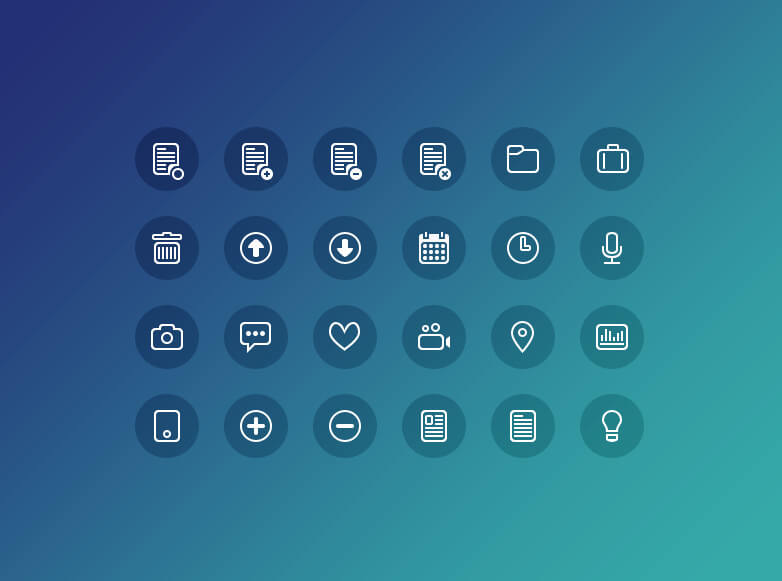
The archive is only 491.66 KB and the source file resolution is 800×600 px. Every icon sits inside a round container, giving the whole set a consistent modern minimal style. The preview has a dark background, but the actual PSD file has no background layer — you get clean vector shapes ready to blend into any interface.

24 round PSD icons for Photoshop
Preview of the 24 PSD icon set

\u{201c}

Design is not just what it looks like and feels like. Design is how it works. Icons in an interface are not decoration — they are navigation tools.

Steve Jobs, Co-founder of Apple

Icon List

The set covers the essential symbols that handle 80% of typical interface needs. Here is every icon with a practical use case:

  • Home — main page navigation. One of the most recognized icons worldwide, no label required;
  • Trash — delete action or e‑commerce cart removal;
  • Search — magnifier for search fields. Industry standard, no alternatives needed;
  • Gear — settings and configuration panel;
  • Envelope — contact, mail, newsletter subscription;
  • Shopping cart — online store, checkout flow;
  • Pencil — edit mode for profiles, comments, posts;
  • Star — favorites, ratings, content evaluation;
  • Heart — likes, saved items, social interaction;
  • Clock — history, recent activity, timestamps;
  • User — profile, login, account area;
  • Bell — notifications, alerts, system messages;
  • Arrow left/right — sliders, step navigation, back/forward;
  • Plus/minus — add or remove items, expand lists;
  • Checkmark — confirm, success state, option selection;
  • Cross — close modals, cancel action, remove tags;
  • Cloud — cloud storage, sync, file upload;
  • Camera — capture photo, upload image, change avatar;
  • Video camera — video, recording, video call;
  • Music note — audio, player, podcasts;
  • Phone — contacts, callback, support hotline;
  • Flag — marker, language selector, gamification achievement;
  • Info — help, information, tooltip trigger;
  • Question — support, FAQ, help desk.

All icons sit on separate named layers. You can change color, size, shadow, and opacity without any quality loss. Just open the PSD in Photoshop (any version from CS6 to 2026). Every layer has a descriptive name — no guessing which one is which.

I recommend renaming the layer groups to match your project naming conventions right after downloading. In large projects this saves hours of searching. The file also preserves original effects: drop shadow, stroke, and gradient. If you need flat Material Design icons, simply uncheck the shadow effect on each layer.

Format Compatibility and Export

The PSD file is your master source. From it you can generate any derivative format. Here is a compatibility breakdown:

FormatResolutionTransparencyEditing
PSD (layers)800×600 pxYesFull (layers, styles, colors)
PNG (export)up to 800×600 pxYesNo
SVG (converted)VectorYesVia code or Illustrator
ICO (converted)16×16 — 256×256YesNo
WebP (export)up to 800×600 pxYesNo

The set works perfectly in Photoshop CS6, CC, 2024, 2025, 2026. You can also open it in GIMP or Photopea — the free alternatives that support PSD. However GIMP does not always read Photoshop layer effects correctly. If accuracy of every shadow and stroke matters, stick with the original Photoshop.

When opening the PSD in GIMP some layer effects may not render exactly as in the original. For full compatibility use Adobe Photoshop. Photopea handles effects better but may still lose subtle gradients.

For web use I recommend exporting to WebP or SVG. WebP gives smaller file sizes at the same quality compared to PNG. SVG is vector — it stays sharp on retina and high-DPI displays without any extra effort. If your project uses CSS sprites, combine the icons into a single PNG sprite sheet using any sprite generator tool.

PSD Icon Set vs Popular Alternatives

I often see designers struggling to choose between a ready PSD set and hunting for individual icons online. Here is a comparison table to clear things up.

CriteriaThis Set (24 PSD)Flaticon (SVG)Icons8 (PNG)Font Awesome
FormatPSD (layers)SVG/PNGPNG/SVGFont/SVG
Photoshop editingFull: layers, styles, masksVia import onlyLimited, no layersCSS styling only
File size~0.5 MB per set10–50 KB per icon1–10 MB per set~200 KB (font)
LicenseFree, commercial useFreemium (attribution)FreemiumFree, MIT
Consistent styleYes, all round, same strokeVaries by collectionVaries by collectionYes, unified
Offline accessYes — file sits on your driveMust download individuallyMust downloadCDN or local file
Vector layersYes, vector masksYes, SVGPremium onlySVG versions exist
Suitable for printYes (CMYK conversion)Yes, harder to editLimitedNo, font format

The main advantage of this set is full Photoshop editing capability. You are not tied to CSS styles, you do not depend on internet access, and you do not pay a subscription fee. Open the PSD and change everything on the fly. For freelancers and small studios this is the ideal format.

Personally I prefer PSD sets for draft work: throw together a layout, tweak colors, show the client. When the layout is approved I convert the needed icons to SVG and hand them to the developer. One file instead of 24 individual downloads — that is real convenience.

How to Use PSD Icons in Web Design

1. Interfaces and Navigation Buttons

Round icons look great in navigation buttons and toolbars. Their uniform shape creates visual rhythm — the user's eye glides along the row and instantly finds the needed function. Export the icon you need as PNG-24 or convert to SVG.

1. Open PSD → select icon layer 2. Hide background layers 3. File → Export → Export As → PNG-24 or SVG 4. Set size 5. Save

Tip: do not export all 24 icons at once. Take only the ones actually used in your layout. Extra files clutter the assets folder and confuse the developer who takes over your project.

2. Mobile Applications

For mobile interfaces use 48×48 dp — the Google Material Design recommended minimum for touch targets. The base 800×600 px resolution allows scaling down to 150×150 px without losing sharpness. For anything smaller export as SVG instead.

Ctrl + Shift + S — save a copy of the selected icon as PNG in Photoshop. Use this shortcut to avoid overwriting the original PSD file.

3. Favicon and Browser Icons

Turn any round icon into a favicon. Export a square 256×256 px version and convert to ICO at favicon.io or ConvertICO. Keep in mind that browsers handle favicons differently: Chrome uses 192×192 for tabs, Safari uses 16×16 for bookmarks. It is best to prepare multiple sizes.

4. Presentations and Social Media

Insert the icon into Canva, PowerPoint, or Keynote as a transparent PNG. The consistent round style gives your presentation a professional polished look. I use these icons in client pitch decks — they look much cleaner than default Microsoft clipart.

5. Printed Materials

If you are preparing a brochure or business card, convert the PSD to CMYK before printing. Go to Edit → Convert to Profile and choose Coated FOGRA39. Without this step the printed colors will differ noticeably from what you see on your monitor.

Icon Design Principles for UI Work

Alignment and Spacing

Always align icons to the pixel grid. In Photoshop enable View → Snap to Grid and set the grid line spacing to 1 px. Round icons appear visually smaller than square ones, so give them slightly more padding — 6–10 px instead of the standard 4 px. On mobile devices the minimum touch target padding should be 8 px to prevent misclicks.

Color and Contrast

Stick to 2–3 colors across all icons in your interface: an accent color (usually your brand color), a neutral gray for passive elements, and a status color (green for success, red for errors). Avoid making every icon multicolored — that creates visual noise. Users should recognize an icon by its shape, not by its color.

\u{201c}

The best interface is the one the user does not notice. Icons should help, not distract. If an icon needs a label to be understood, it is not working.

Steve Krug, Author of Don't Make Me Think

Size and Weight Guidelines

Choose size based on context. Here is a proven size grid I use across projects:

  • 16×16 px — small elements, tags, status badges;
  • 24×24 px — toolbars, table action icons;
  • 32×32 px — navigation buttons, social links;
  • 48×48 px — mobile home screen icons;
  • 64×64 px — large CTAs, promo blocks, feature lists.

Never scale an icon up more than 2 times its original size — pixels will get blurry. Export at the target resolution instead.

Style Consistency

This set is already uniform: all icons are round, with the same stroke weight, corner radius, and similar styling. If you add custom icons, match the same parameters. Copy the Layer Style from an existing icon via right-click → Copy Layer Style, then paste onto your new layer. This preserves visual unity across the entire set.

Download and Installation

Download 24 PSD Icons491 KB

What is Color Overlay?Color Overlay is a Photoshop layer effect that replaces the original fill color with your chosen color while preserving textures, shadows, and gradients

If you work in Figma: import the PSD using the PSD Importer plugin. Figma does not natively open PSD files, but the plugin handles simple files. Note that layer effects may reset — you will need to reapply colors. For large projects I recommend keeping the PSD master in Photoshop and loading only ready PNG or SVG files into Figma.

Frequently Asked Questions

Which Photoshop versions support this PSD file?

The set opens in Photoshop CS6 and above, including all CC versions, 2024, 2025, and 2026. Partial compatibility exists with Photopea (online editor) and GIMP (free desktop editor). Layer structure is preserved across all versions, but some effects may render differently in GIMP.

Can I change icon colors without losing quality?

Yes, every icon sits on its own layer with a vector mask. Apply Color Overlay, Gradient Overlay, Pattern Overlay, or fill with a new color using the Paint Bucket tool in layer mode. Quality remains intact because the shape is defined by a vector mask, not a raster selection. Even after ten color changes the edges stay crisp.

Which format should I use: PSD, PNG, or SVG?

It depends on the stage of work. PSD for design and editing, PNG for quick placement in mockups or presentations, SVG for final website markup. The optimal workflow: the designer works in PSD, the developer receives SVG. If you work alone, keep the master in PSD and upload SVG to the site for retina-ready graphics.

Is the set really free? Are there hidden costs?

Yes, the 24 PSD icons are completely free. No subscriptions, no hidden payments, no mandatory attribution. I checked the files — no watermarks or restrictions. You only invest the time to download.

Can I use the icons in commercial projects?

Absolutely. The license permits commercial use without limitations. You can embed these icons in e‑commerce sites, paid mobile apps, client presentations, and printed materials sold for profit. The only restriction: do not resell the original PSD file as a standalone product.

Why exactly 24 icons and not 50 or 100?

24 is the sweet spot for a base UI kit. The author selected symbols covering the core actions: navigation, editing, search, notifications, profile, favorites, and media. Usage statistics show that 80% of clicks in a typical interface fall on these functions. The remaining 20% are niche scenarios better served by custom icons.

How do I convert a PSD icon to SVG for frontend use?

The simplest method: open the PSD, right-click the icon layer → Export As → choose SVG from the format dropdown. Photoshop generates a clean vector file. Alternative: use an online converter like SVGonvert (free, up to 5 files) or Convertio (2 files without registration). Make sure the layer is vector before conversion — otherwise the SVG will contain embedded raster data instead of real vector paths.

The icon looks blurry after scaling. What went wrong?

The layer is rasterized instead of being vector. Check the Layers panel: if the thumbnail shows a checkerboard pattern without a vector mask icon, the layer is raster. Solution: use Image Trace in Adobe Illustrator or recreate the icon using the Ellipse Tool and Shape Layers. Going forward, always duplicate the vector layer before applying any raster filters.

Can I add my own icons to this PSD set?

Yes, the set is easy to extend. Create a new shape layer (hold Shift with Ellipse Tool to get a perfect circle) and apply the same layer styles as the existing icons. To copy styles: right-click an existing icon layer → Copy Layer Style, then right-click your new layer → Paste Layer Style. Done. Your new icon will look like it was added by the original author.

What color profile does the PSD use and should I change it?

The file uses the standard sRGB IEC61966-2.1 profile — optimal for web and digital screens. If you are preparing icons for print (brochures, business cards, banners), convert to CMYK: go to Edit → Convert to Profile and choose, for example, Coated FOGRA39. Note that after conversion bright colors may look duller — this is normal for CMYK because it has a narrower color gamut than sRGB.

Tap to react